



Print this Topic
Overview
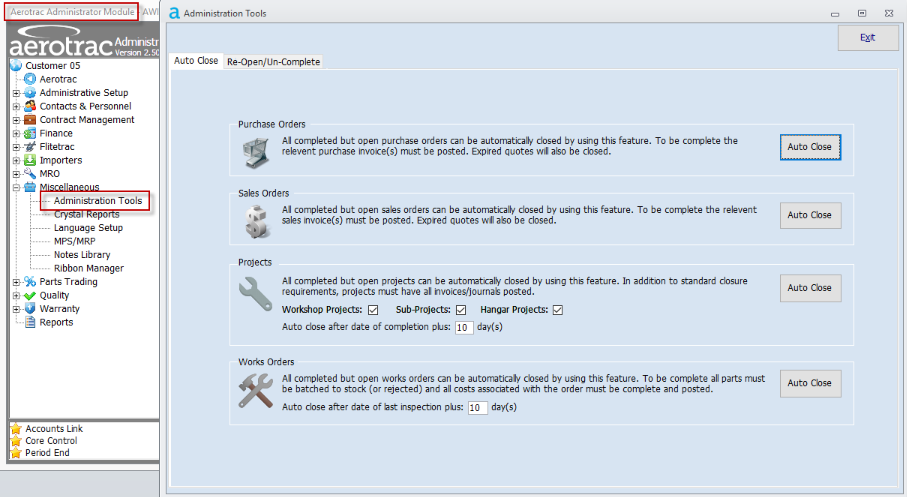
A new menu item was added in the 2.50.28.01 version of Aerotrac to combine all of the individual Auto Close routines with the Re-opening and Un-completion functions.
These functions now reside in the Administrator Module under the Miscellaneous menu, as "Administration Tools" :-


Auto Close
These tools close all open orders based on certain criteria. The following sections explain the routines and why orders may not be closed when expected.
Purchase Orders
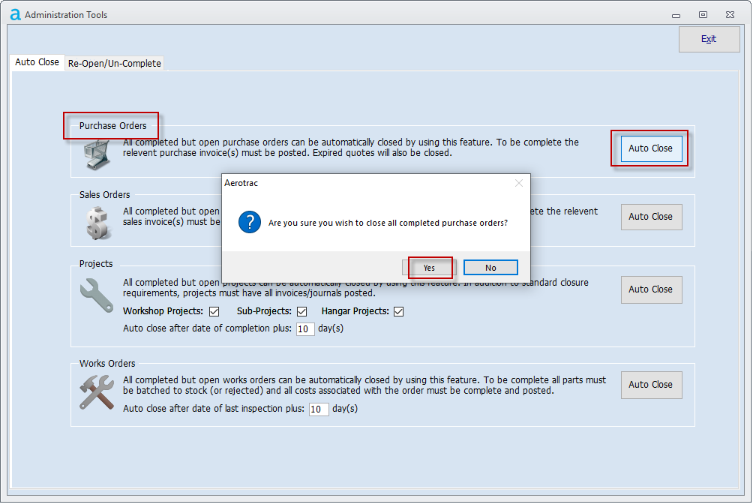
To close all completed but open Purchase Orders, click the "Auto Close" button.
Select "Yes" at the next pop-up :-
If the auto close routine was successful then you will see a message as below :-
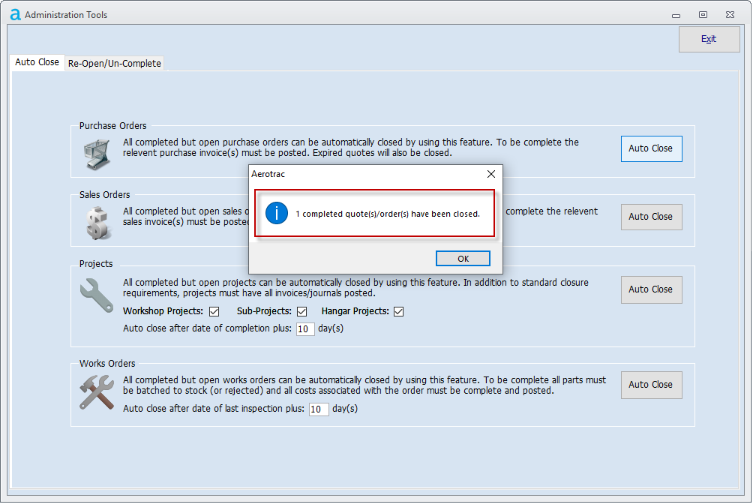
Click "OK" to close the pop-up.
If no orders met the criteria to be closed then you will see a message as below :-
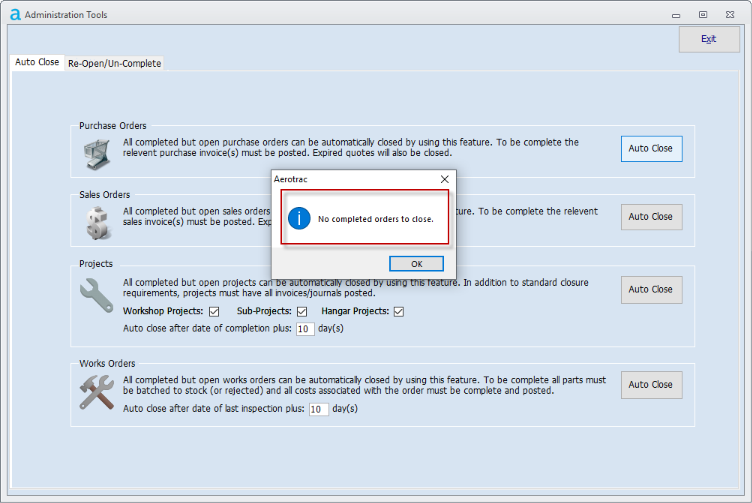
Click "OK" to close the pop-up.
If no orders have been closed, or fewer orders have been closed than expected then check :-
- That the relevant POs have been completed.
- That the relevant Purchase Invoices from the Supplier have been entered against the PO and that they have been posted.
Sales Orders
To close all completed but open Sales Orders, click the "Auto Close" button
Select "Yes" at the next pop-up :-
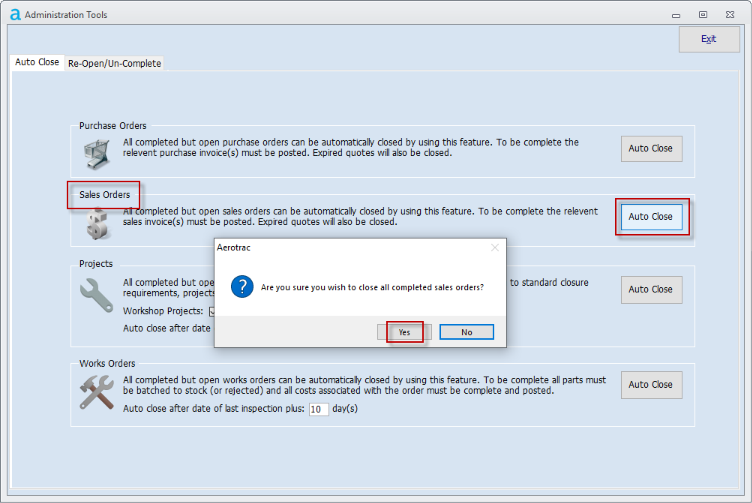
The pop-ups displayed will be similar to the above.
If no Sales Orders have been closed, or fewer Orders have been closed than expected then check :-
- That the relevant Sales Orders have been completed.
- That the relevant Sales Orders have been invoiced and the invoices posted.
Projects
To close all completed but open Projects, set the type(s) of projects required, via the tick boxes, and the number of days after completion. Then click the "Auto Close" button.
Select "Yes" at the next pop-up :-

If no Workshop Projects have been closed, after running the routine, or fewer Projects have been closed than expected then check :-
- That the relevant Projects have been WIP completed and for Stock Projects, the Project item booked to Stock or Rejected, via the Project Finished Goods routine and the batch costs posted to stock via the Cost Finished Goods routine.
- For Customer Workshop Projects that there is an invoice raised, even if this is zero value, and that the invoice is posted.
- That the relevant Projects have all associated costs complete and posted.
This will involve checking that the Purchase Invoices for any linked Sub-Con and / or Misc Charges have been posted.
You also need to ensure that any time bookings, to the Project, via Daily Timesheets are posted.
If no Hangar Projects have been closed, after running the routine, or fewer Projects have been closed than expected then check :-
- That the relevant Projects have been Maintenance completed
- For Customer Hangar Projects that there is an invoice raised, even if this is zero value, and that the invoice is posted. Aircraft Projects against your own aircraft will need a journal raised and posted.
- That the relevant Projects have all associated costs complete and posted.
This will involve checking that the Purchase Invoices for any linked Sub-Con and / or Misc Charges have been posted.
You also need to ensure that any time bookings, to the Project, via Daily Timesheets are posted.
Depending on the number of days set after date of completion, and when the projects were completed, certain Projects may not be closed if they do not meet the number of days criteria. A message similar to that below will be displayed :-

Note: The closure of a Sub-Project, via the Auto Close routine, has no effect on the parent Workshop or Hangar Project.
Work Orders
To close all completed but open Works Orders, set the number of days after the date of the last inspection and click the "Auto Close" button.
Select "Yes" at the next pop-up :-
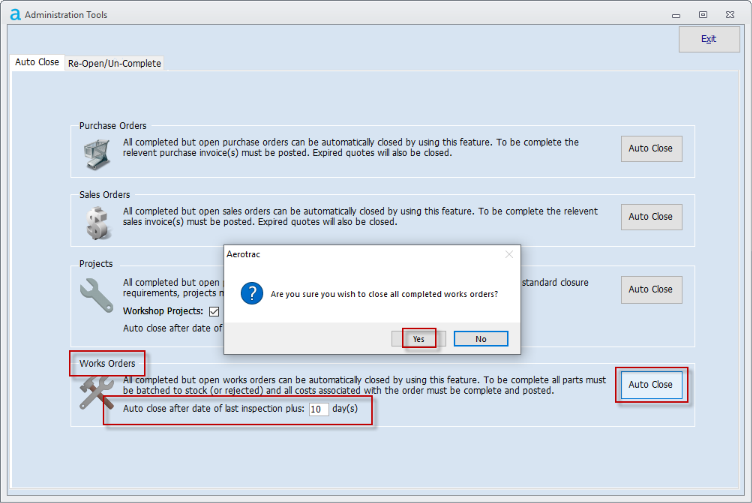
If no Works Orders have been closed, after running the routine, or fewer Works Orders have been closed than expected then check :-
- That the relevant Works Orders have been completed and all items booked to Stock or Rejected, via the Works Order Finished Goods routine.
- That the relevant Works Orders have all associated costs complete and posted.
This will involve checking that the Purchase Invoices for any linked Sub-Con and / or Misc Charges have been posted.
You also need to ensure that any time bookings, to the Works Order, via Daily Timesheets are posted.
Depending on the number of days set after date of last inspection, and when those inspections were completed, certain Works Orders may not be closed if they do not meet the number of days criteria. A message similar to that below will be displayed :-

Note: In cases where the auto close routine does not close certain orders it may still be possible to manually close the order via the close button on the order screen.
Re-Open/Un-Complete
These tools allow for the un-completion of Projects, the un-authorisation of Invoices and the re-opening of Estimates.
Project Un-Completion
Select the completed Project number in the drop-down combo and click the "Un-Complete Project" button :-

The pop-up will confirm the un-completion :-
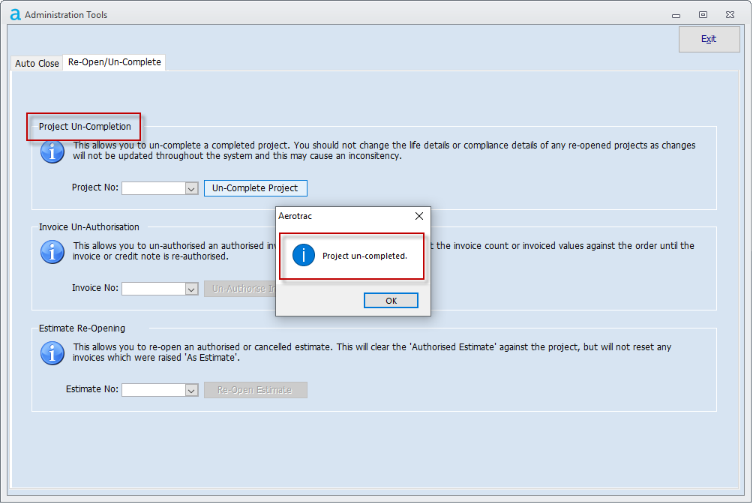
Click "OK" to close the pop-up.
Note: You should not change the life details or compliance details of any un-completed projects as changes will not be updated throughout the system and this may cause inconsistencies.
Note: When un-completing Hangar Projects it is important that the project is completed again as soon as the necessary corrections have been made.
Invoice Un-Authorisation
Select the authorised invoice number in the drop-down combo and click the "Un-Authorise Invoice" button :-
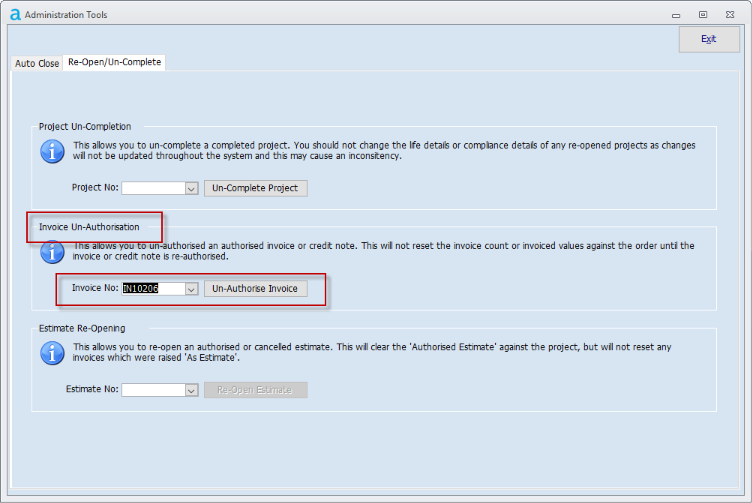
The pop-up will confirm the un-authorisation :-
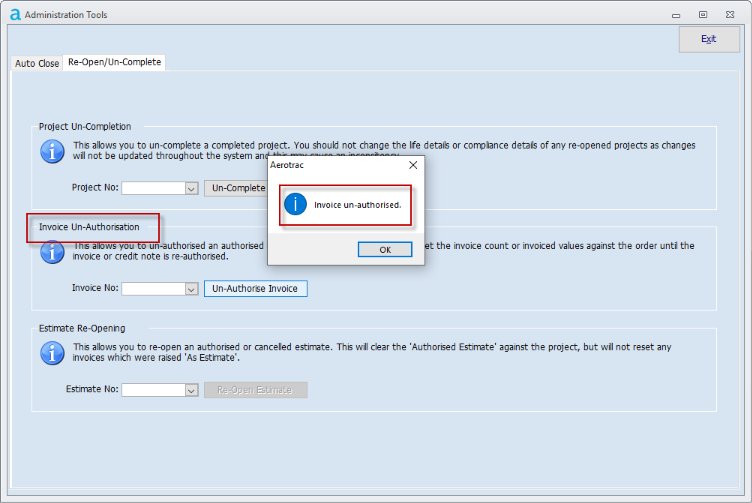
Click "OK" to close the pop-up.
Note: This function is only for un-authorising invoices that have been authorised prior to posting. Posted invoices cannot be unposted via this function. The only way to reverse a posted invoice is to raise a credit note.
Estimate Re-Opening
Select the authorised or cancelled Estimate number in the drop-down combo and click the "Re-Open Estimate" button :-
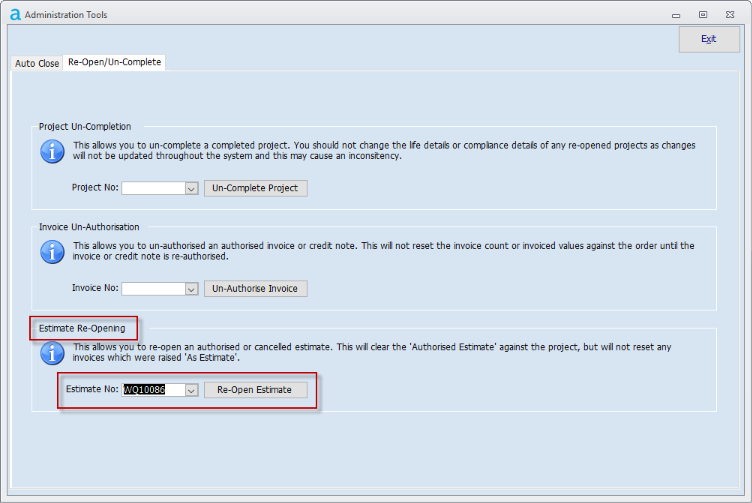
The pop-up will confirm the re-opening :-
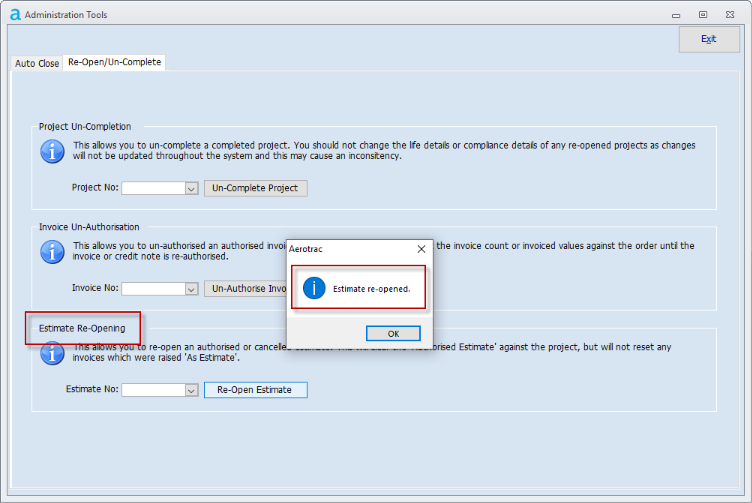
Click "OK" to close the pop-up.
Aerotrac Version 2.50.28.01d, September 2023
Not controlled once printed
END