



Print this Topic
Config Robbery
Overview
This topic is intended to provide an overview of the robbery process in the hangar environment when robbing an LLP / Configuration Status Component.
The process is described in the following flow diagram :-
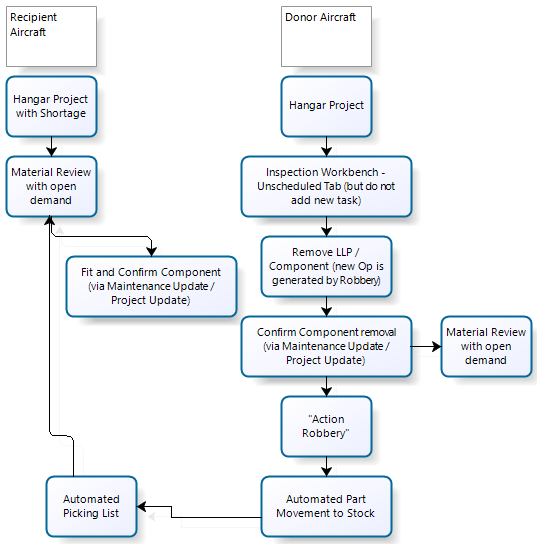
Note: This process assumes that you have a requirement for the component being robbed on an existing Hangar Project for the recipient aircraft with an open demand on the Project Material Review.
Process
If a Hangar Project does not exist for the donor aircraft then you will need to raise one (with or without a Maintenance Instruction).
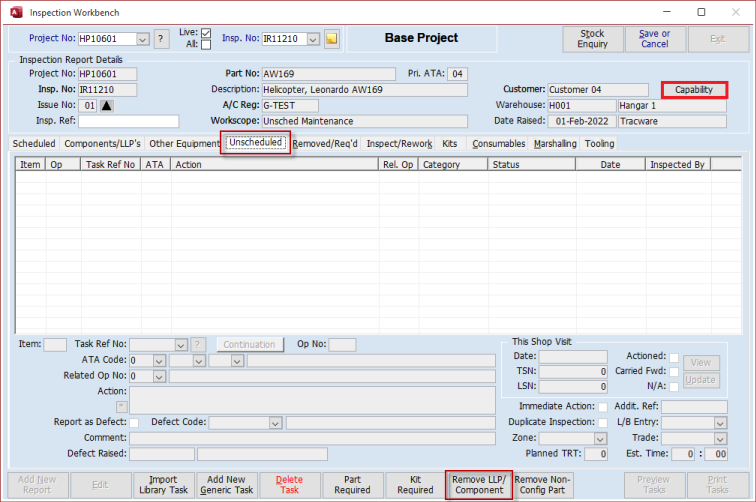
On the Project Inspection Workbench, edit and go to the "Unscheduled" tab but do not add a new Task. Click the “Remove LLP/Component" button :-
This will open the “Unscheduled Component Removal” pop-up screen :-
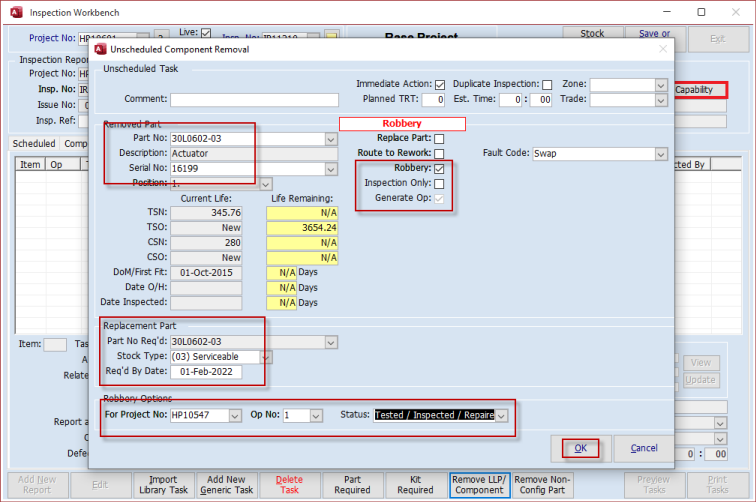
On this screen, tick the “Robbery” tick box and select the relevant part number and the relevant serial number to be removed. This list is limited to Config LLP items.
Ticking the “Robbery” tick box will automatically select the additional "Generate Op" tick box.
In the "Replacement Part" fields enter the details of the part required to replace the one being removed.
Ticking the “Robbery” tick box also opens up the "Robbery Options" fields at the bottom of the screen. Choose the details of the recipient aircraft Project and Op number etc.
Complete all other details on the screen as necessary and click the “OK” button.
Save the Inspection Workbench screen, you will see the following pop-up :-

Select "Yes" to generate the op for the robbery component removal and to print the necessary paperwork.
The component is added to the Removed/Req'd tab of the Inspection Workbench and the "Component/LLPs" tab.
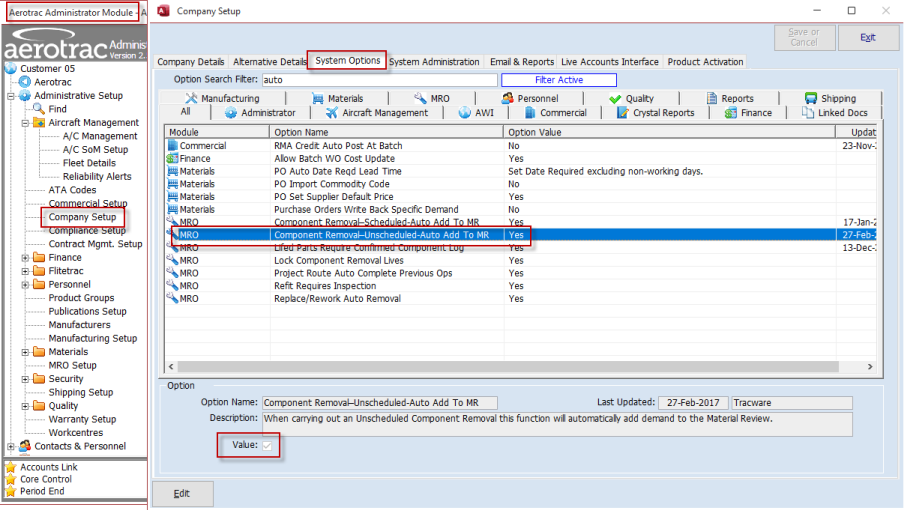
As part of this process, a demand for the robbed component will be automatically added to the Material Review for the replacement item that will eventually be required on this donor aircraft.
Note: This is subject to the following System Option being set to "Yes" :-
Next, the Component removal (Removed Only) needs to be actioned via the Maintenance Updates / Project Updates screen, in the usual manner :-
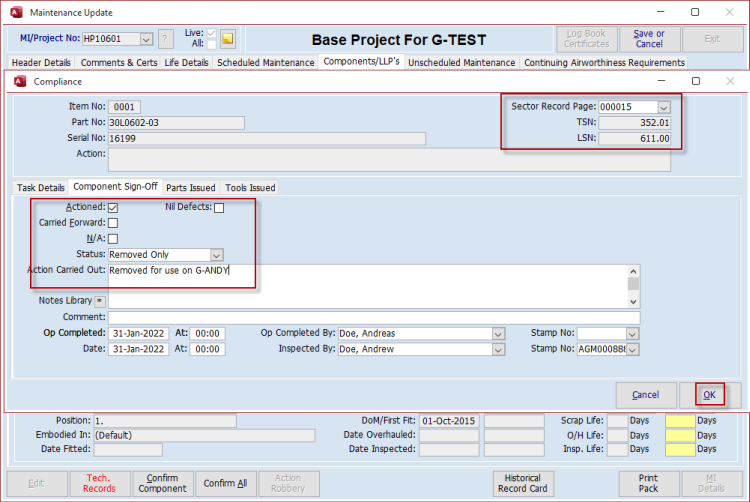
Confirm the Component Removal and on Save the “Action Robbery” button becomes active :-
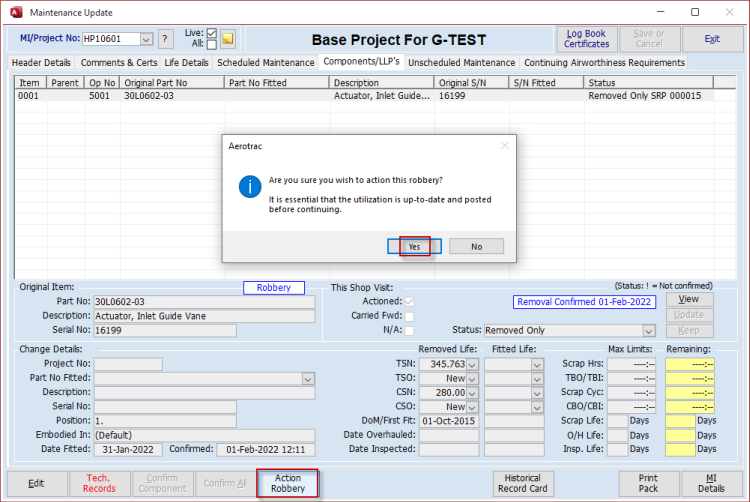
Confirming “Yes” to the pop-up auto-generates the Part Movement transaction to Stock :-

Complete all details as necessary.
On Save the component will be allocated to the recipient aircraft project and available for selection on the picking list :-

Complete all details and save the Picking List.
You now need to fit the component to the recipient aircraft in the usual manner via Maintenance / Project Updates (Replaced From Stock) and Confirm its fit.
Aerotrac Version - 2.50.25.01, February 2022
Not controlled once printed
END