



Print this Topic
Introduction
This topic covers the use of the Continued Airworthiness Requirements report, or CAR, in Aerotrac.This is a report usually for line maintenance events due before the next base maintenance check. Some people refer to this as a "Short Forecast".
The report is generated via the "Continued Airworthiness Requirements" tab of the Maintenance Update screen.
Report Format Options
The report can be printed in various formats as set against the relevant A/C Maintenance Type in the Quality Setup.
In the Administrator Module, navigate to Administrative Setup, Quality, Quality Setup.
Edit the screen as required and select the appropriate "Continued Airworthiness Report" from the drop-down combo on the "A/C Maintenance Types" tab :-
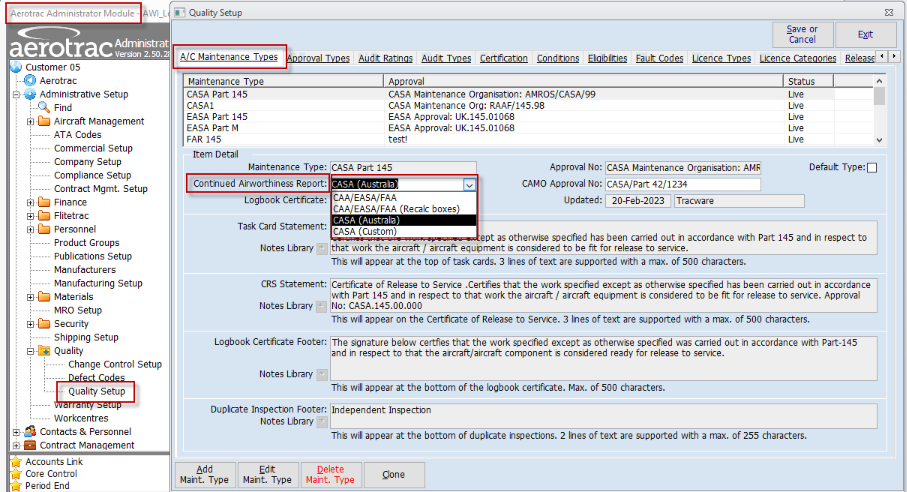


The different options and the associated report formats are covered later in this topic.
Using the CAR Screen
You can raise a CAR at any point in time but, by design, it is intended that it is raised once all maintenance has been actioned and the Maintenance Update "Maintenance Completed" and "Tech Records Completed".
From the Main Menu, of the main Aerotrac application, navigate to Aircraft Management, Maintenance Update and select the relevant Maintenance Instruction number in the drop-down combo located at the top left of the screen :-
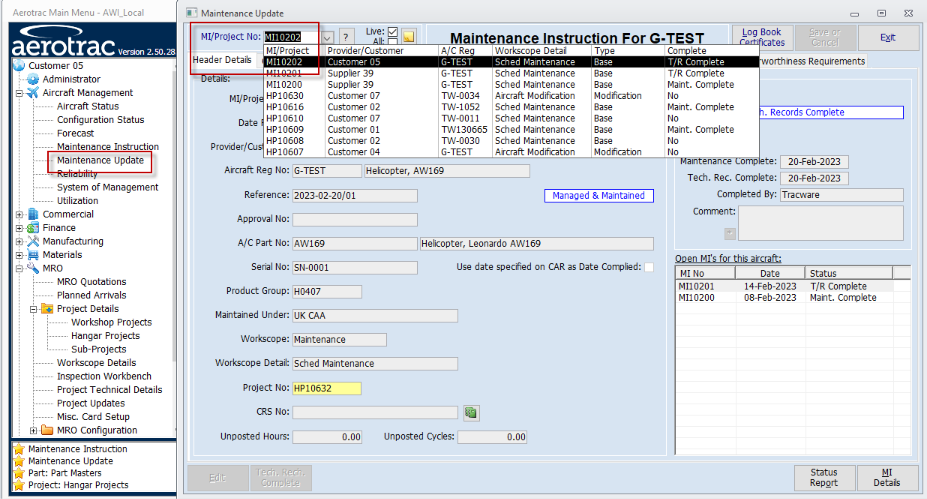
Go to the "Continued Airworthiness Requirements" tab located at the far right end of the screen and click the "Edit" button located at the bottom left of the screen :-

The table view populates with all of the scheduled maintenance and component / LLPs as per the repeating forecast.
WIthin the "This Inspection" section, the "CAR Date", "A/C Hours" and "A/C Landings" fields will auto-import once the Maintenance Update has been "Tech Records Completed".
If the Maintenance Update has not been "Tech Records Completed" these details will need to be entered manually.
Select the main maintenance event for the work carried out at this visit in the "Inspection" drop-down combo :-
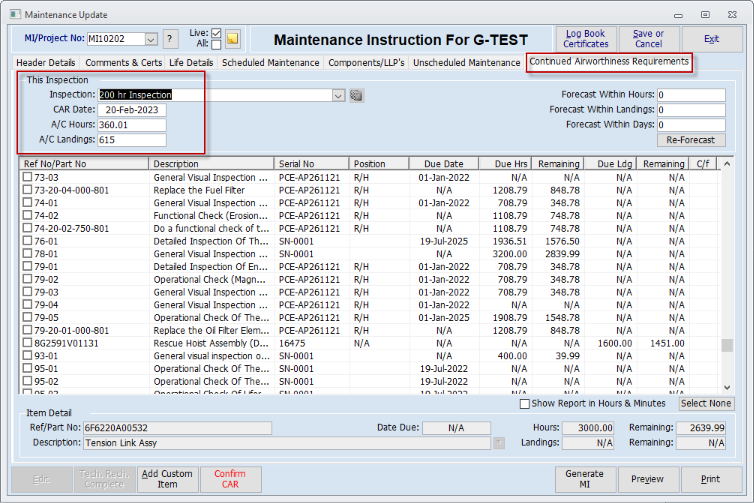
Note: The events available for selection in the "Inspection" field comes from the list of Task Descriptions set up in the A/C SOM Setup within the Administrator Module.
Enter the forecast period, or the period for which the CAR is valid, in the Forecast Within Hours, Landings and Days fields on the top right of the screen.
Click the "Re-Forecast" button. The system will run the forecast, based on the criteria set, and automatically select (tick) all the maintenance events due within the period in order to populate the CAR report :-
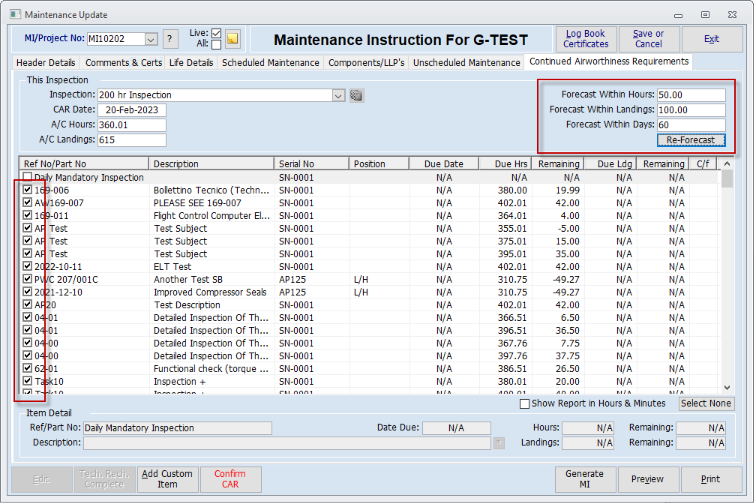
The selected events can be de-selected by unticking them. Non selected events can be manually selected by ticking them.
The "Select None" button de-selects all the selected events.
The "Show Report in Hours & Minutes" tick box is defaulted as per the set up in the Fleet Details screen although it can be set on the CAR screen at the time. It allows the report to be printed in hours and minutes :-
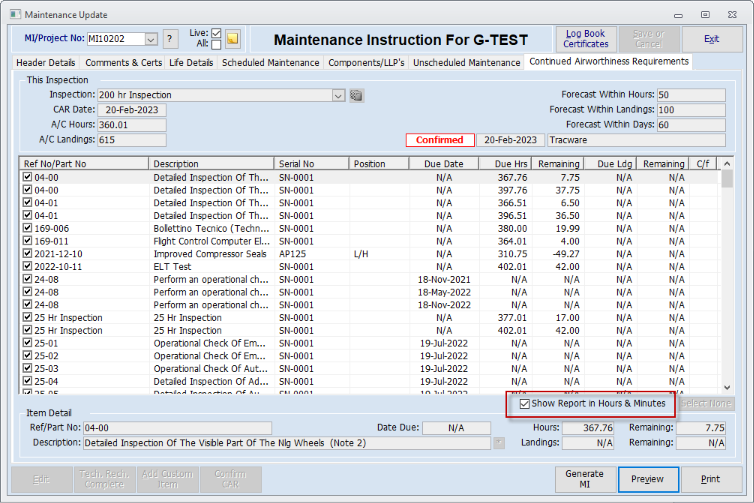
You can manually add items to the CAR report via the "Add Custom Item" button :-
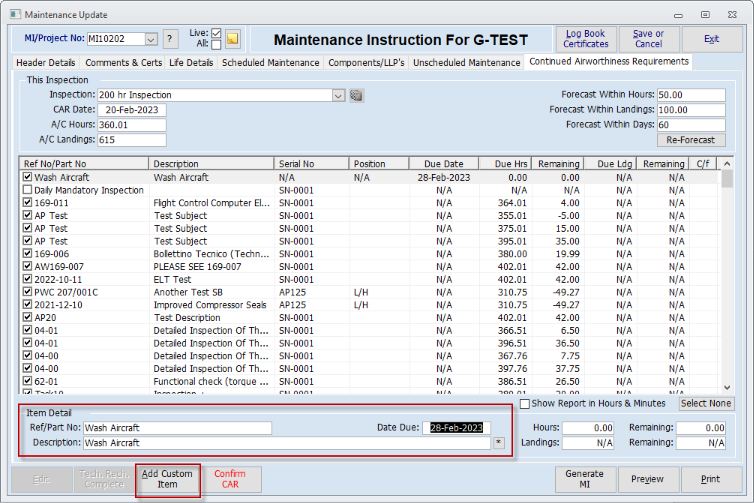
You can also manually add the "Date Due" criteria for the "Daily Mandatory Inspection".
Save the CAR screen as necessary. You can re-edit via the "Edit" button up to the point the CAR is confirmed.
The CAR is confirmed via the "Confirm CAR" button and selecting "Yes" at the next pop-up :-
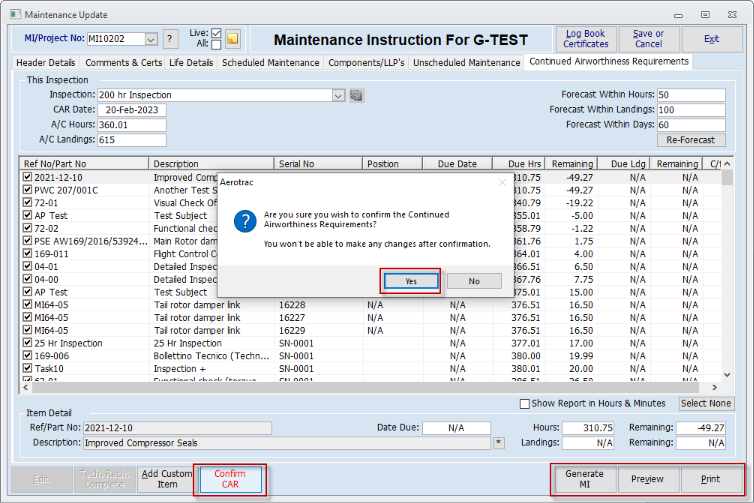
Note: Once confirmed, the CAR cannot be edited.
If required, a new Maintenance Instruction can be created with all of the selected maintenance events. This is achieved via the "Generate MI" button.
The CAR report can be previewed and / or printed via the "Preview" and "Print" buttons located at the bottom right of the screen.
Reports Formats
- CAA/EASA/FAA - Report Code ACM0003
The screen layout is the same as the above screen prints.
The report format is as shown below :-

With the following as the final page :-
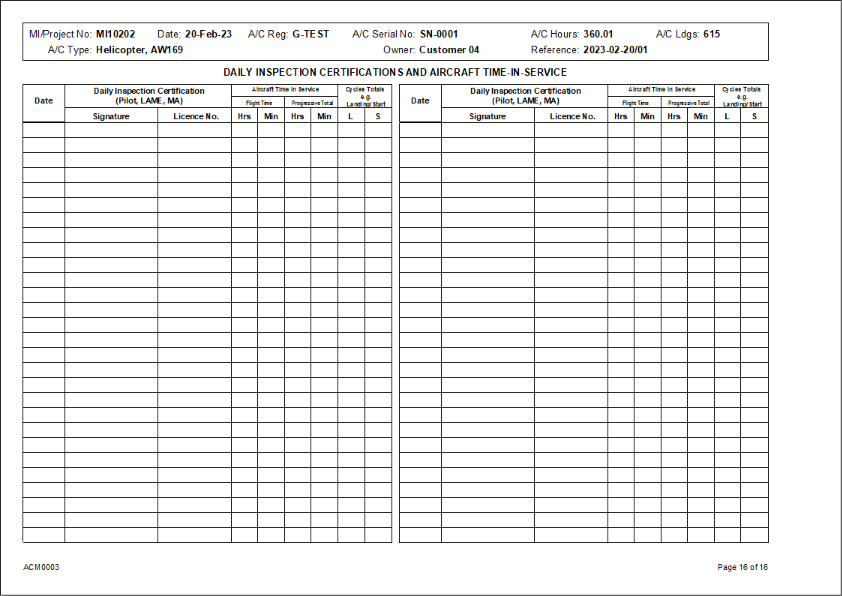
Note: The report will have a draft watermark until the CAR has been confirmed, at which point the watermark will be removed.
- CAA/EASA/FAA (Recalc boxes) - Report Code ACM0008
The screen layout is the same as before.
The report format is as shown below, with the additional Recalculated Due Hrs, Due Ldg/Cyc and Due Date columns :-

Note: The report will have a draft watermark until the CAR has been confirmed, at which point the watermark will be removed.
- CASA (Australia) - Report Code ACM0004
The screen layout is similar to before but with three additional tick boxes and two drop-down combos.
You can select (tick) the relevant flight type(s) and select the relevant "Op. Category" from the drop-down combo :-
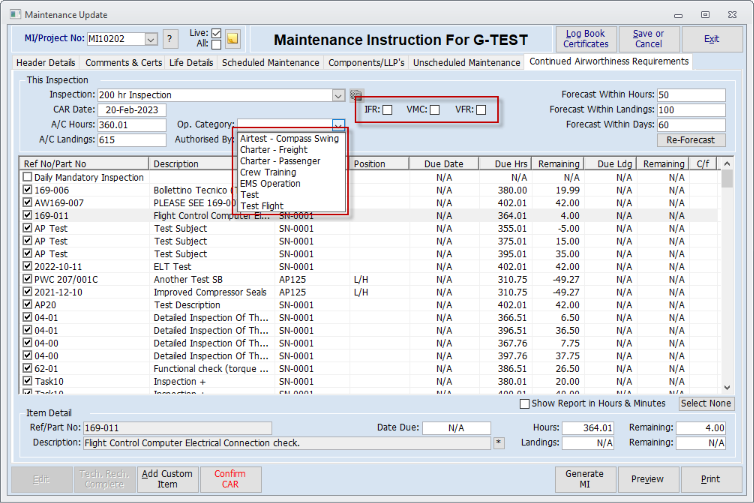
The Op Categories come from the "Flight Types" as setup on the "Utilization" screen.
Note: If you have the Flitetrac module activated on your system then the "Flight Types" are added and edited via the Flitetrac Setup screen.
Next, select the "Authorised By" :-
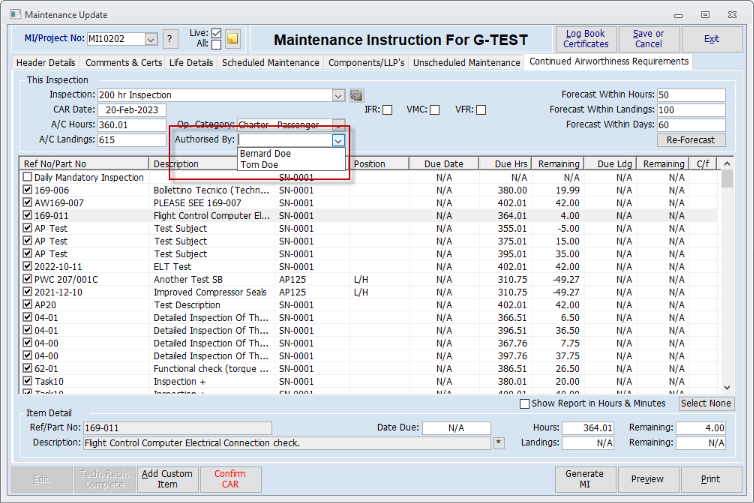
These are Employees set as "CAMO Approved" in the "Employee Details" screen.
The report format is as shown below :-

With the final two pages as shown below :-
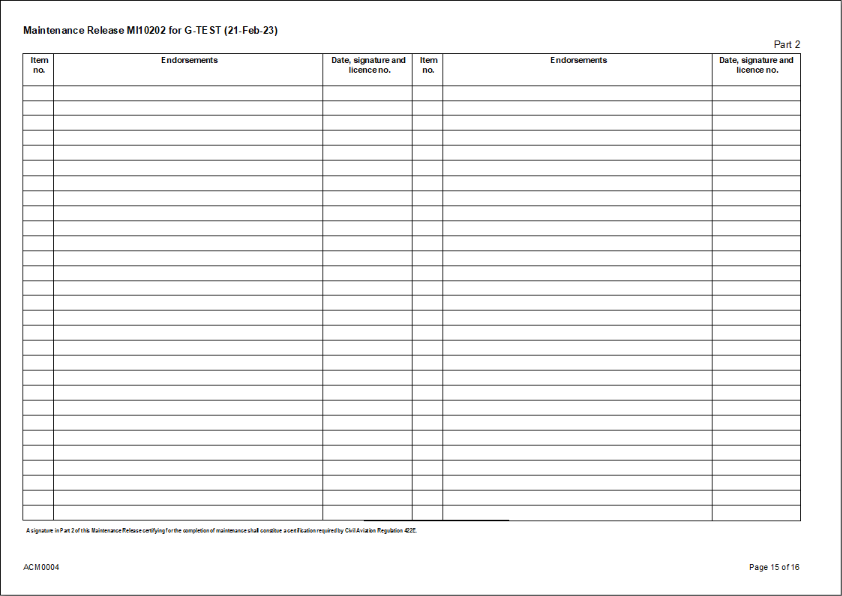
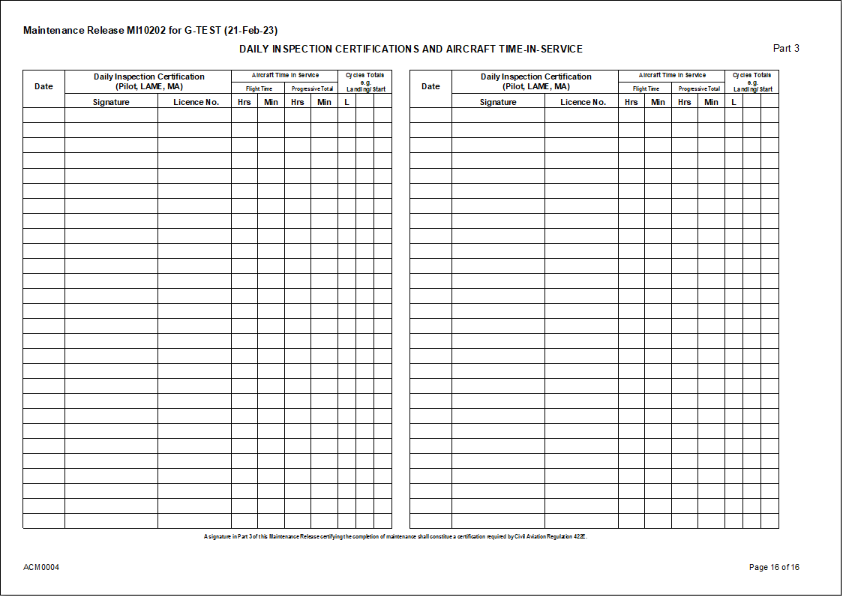
Note: The report will have a draft watermark until the CAR has been confirmed, at which point the watermark will be removed.
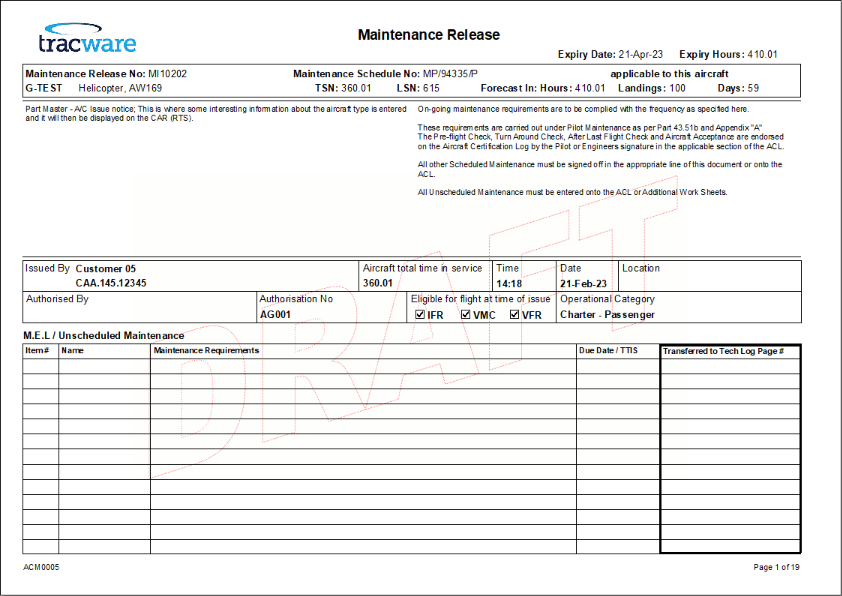
- CASA (Custom) - Report Code ACM0005
The screen layout is the same as the above with the exception that where there is an associated Line Hangar Project, the CAR screen also has a “Continuing Airworthiness Project” drop-down combo, which allows you to select the associated Base Hangar Project, and this gets printed on the report.
The report format for page one is as shown below :-
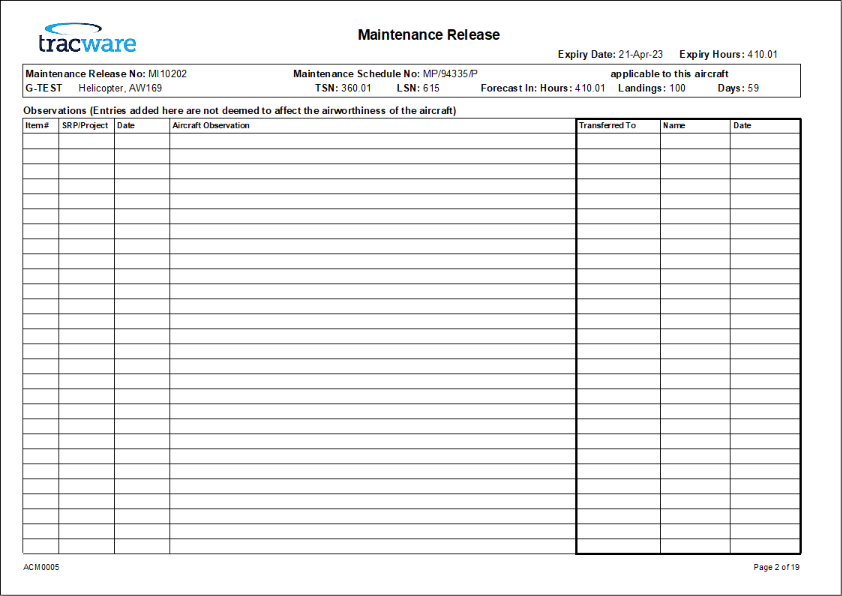
This is page two :-
Subsequent pages are as shown below :-

Note: The report will have a draft watermark until the CAR has been confirmed, at which point the watermark will be removed.
Note: Due to CASA PNG requirements, when “CASA (Custom)” is selected, the CAR report for Base Projects is titled “Maintenance Release”, and for Line Hangar Projects is titled “Continuing Airworthiness Requirements”
Using the CAR Date for Scheduled Maintenance
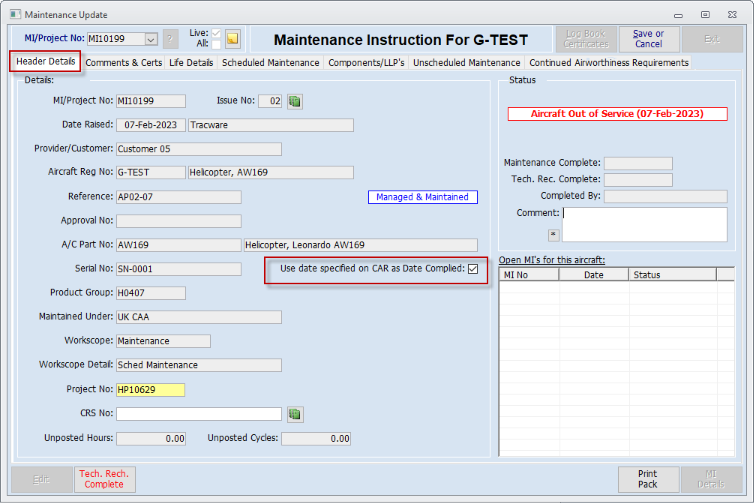
This option, used while updating maintenance events based on a CAMO Maintenance Instruction or Maintenance Organisation Project Update, allows you to use one date, the CAR date, as the compliance date that gets written back to the Aircraft Status, for all calendar scheduled maintenance events. This could be the final day of an annual inspection, for example.
The option can be set here on the Maintenance Update Header (this is controlled by a System Option) :-
With the above set, enter the required date in the "CAR Date" field on the "Continuing Airworthiness Requirements" tab :-
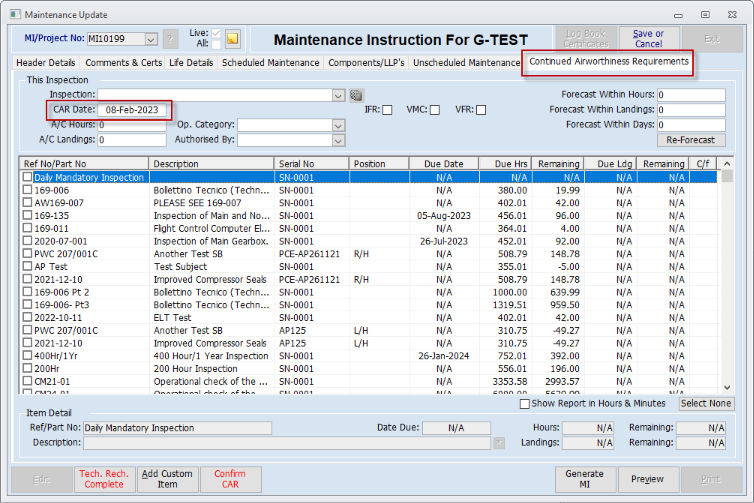
This date is used as the last compliance date for all scheduled maintenance on this Maintenance Update, when tasks are confirmed, and replaces the actual Inspected By date that is entered on the "Compliance" pop-up screen at the Maintenance Update or Project Updates stages.
Aerotrac Version v2.50.28.0b, February 2023
Not controlled once printed
END