



Print this Topic
Create a Unit of Measure
| Steps | Navigate To | Screen | Instruction | Image |
|---|---|---|---|---|
| 1 | Administrator - Administrative Setup - Materials | Unit Measures |
Click on 'Add Unit of Measure' button Enter a 'Unit of Measure' (abbreviated description) Enter a full description Tick in 'Show In Aerotrac:' Note: You might want to show partial quantities when purchasing in this unit. |


Create a Buying unit of Measure and its conversion
There are many cases when the unit of measure that you are purchasing is not the unit of measure that you stock or issue. A simple example is when a vendor only sells a product in 'packs' of 100 yet you stock it and issue it as each.
With Aerotrac, in the above scenario you would purchase quantity of 1 (buying unit) and when the product arrives the system will convert that 1 to 100 'Stock' units.
Aerotrac also caters for different venders selling the same product but each offering a different selling quantity. Vendor A - sells in packs of 20 and Vendor B sells in pack of 10.
These all require a unit measure and a conversion calculation to purchase in one type of unit measure and stock in another type.
| Steps | Navigate To | Screen | Instruction | Image |
|---|---|---|---|---|
| 1 | Administrator - Administrative Setup - Materials | Unit Measures |
Click on 'Add Unit of Measure' button Enter a 'Unit of Measure' (abbreviated description for a Buying unit (this example 'Pack-5') Enter a full description Tick in 'Show In Aerotrac:' Note: You might want to show partial quantities when purchasing in this unit. |
|
| 2 | Administrator - Administrative Setup - Materials | Unit Measures |
Click on the 'Unit Conversions' tab. Click on the 'Add Unit Conversion' button. Select in 'Buying Units' the unit measure description you have just created in Step 1. above. (Packs of 5 Each) Select the 'Stocking Unit' you are converting to. (This example 'Each') |
|
| 3 | Administrator - Administrative Setup - Materials | Unit Measures |
Apply the 'Conversion' calculation... 1 Pack-5 = 5 each Save the form. |
|
|
END | ||||

Theory
To apply the Buying Units when Ordering the Parts you must create a Purchasing Default for that Part and enter the 'Buying Units'.
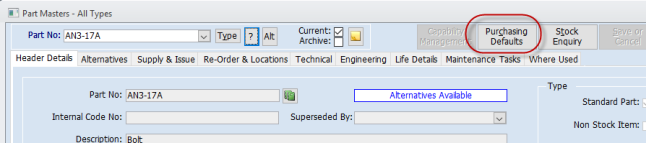
From the Part Master for that part, click on the 'Purchasing Defaults' button.
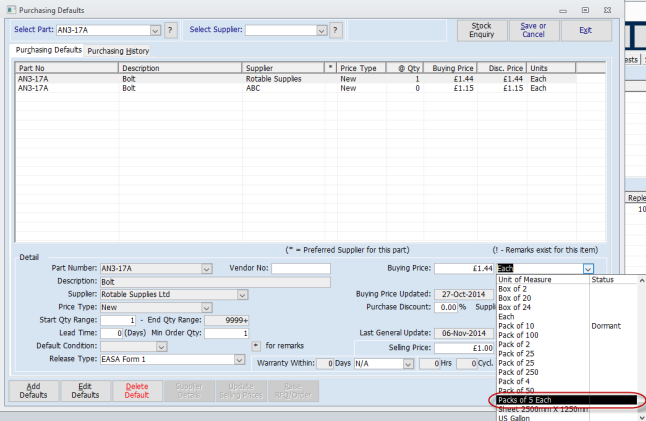
Select the Supplier that you buy from with the 'Buying Unit' you have created and select it in the drop down list. Add the price for the 'Buying Unit' , Stock Type and any other pertinent information and save.
When ordering this part from the Supplier set in Purchasing Defaults (above), using this Buying Unit on a Purchase Order you will notice the Buying Unit conversion 'Packs of 5 Each = 5'
The Order Quantity is 10 and the Unit Price = £3.50 (Ext £35.00)
This means you are ordering 10 packs of 5 each..

When you come to receive this order with the GRN Process in Aerotrac you will receive in 'Packs of 5 each'. ('10 Packs of 5 each' this example)

Aerotrac, when batching, will convert the 10 packs of 5 each into quantity of 50 each and applies the unit cost of £3.50 Per Pack to a stocking unit each.
Note: The Quantity going into stock highlighted below...
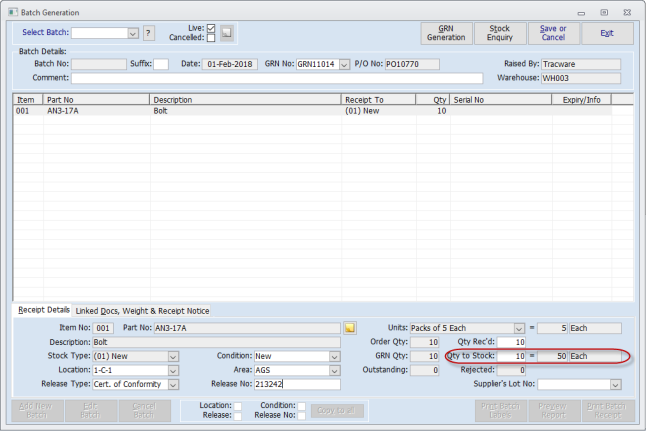
Here on the batch details....

'Unit Measures & Buying Unit conversions' Aerotrac Version v2.50.12.02, April 2018, END