



Print this Topic
Introduction
This topic covers how the Aerotrac system handles the subject of "Critical Tasks".
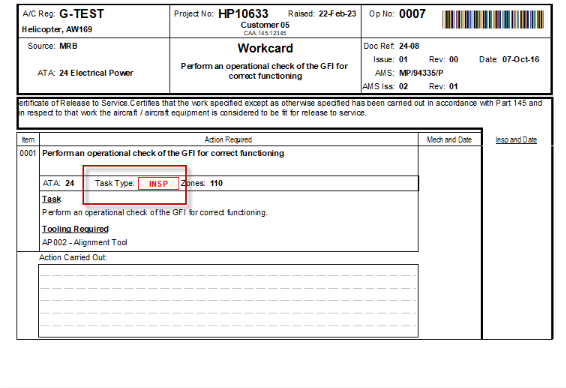
The system adds a red banner to the printed task card so that it is obvious to the Engineer(s) carrying out the task that it is a critical one and so they must follow the relevant defined procedures.
Task Type Setup
It is necessary to amend the "Task Types" setup.
In the Administrator module, navigate to Administrative Setup, Aircraft Management, A/C SoM Setup and go to the "Task Types" tab :-


Add or edit the existing Task Type, as necessary. Set the "Critical Task" flag against the Task Type via the tick box located just right of centre on the lower part of the screen.
Note: it may be necessary to have two "Task Types" for the same type, one flagged as "Critical Task" and one not. See the example above.
The System of Management Task Card
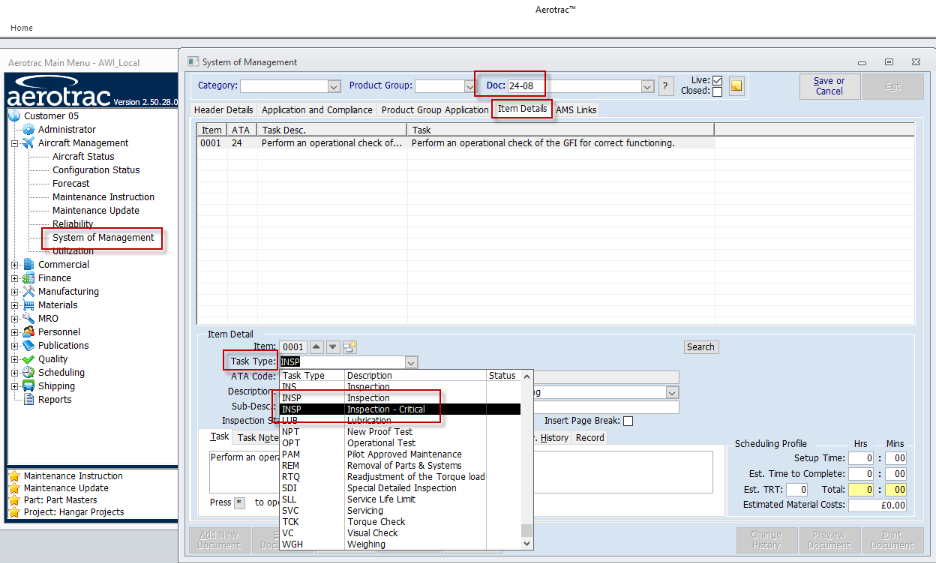
In the main Aerotrac application, navigate to Aircraft Management, System of Management and select the relevant task card.
Edit and un-approve the task card, as necessary.
On the "Item Details" tab edit the task type in the "Task Type" drop down combo and select the relevant critical task as setup above :-
Re-approve the task card, as necessary, and save.
The Printed Task Card
When the task is imported into the Hangar Project, the printed task card displays the "Task Type" in red font :-
Aerotrac Version v2.50.27.03a, March 2023
Not controlled once printed
END