



Print this Topic
Overview
This Guide is intended to provide clients with an overview on how Aerotrac tracks deferred defects and MEL items. It will show the User:-
- The basic setup steps required
- How to set up the necessary MEL task cards
- How to manage scheduled events based on the MEL tasks
- How to raise defects and defer them
Topic Contents
Carried Forward Defects (Deferred Defects) - Maintenance Update / Hangar Project
Carried Forward Defects (Deferred Defects) - Aircraft Status
Setup
In order to use the defect and MEL functionality in Aerotrac there are a few areas of setup that will need to be in place. These are covered below.
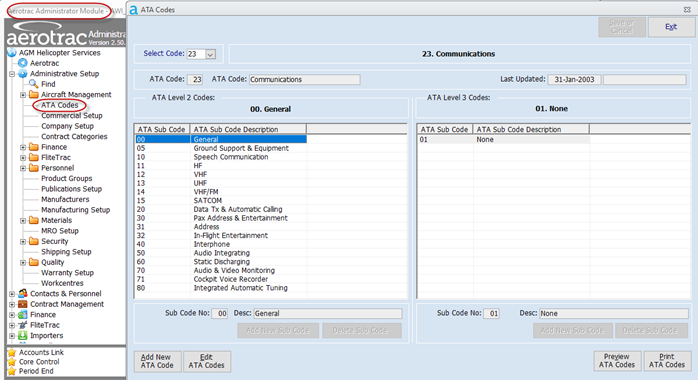
Firstly, it is important that you have your ATA codes setup to at least two levels. This is achieved via the ATA Codes setup screen found in the Administrator Module under Administrative Setup :-
Next, the defect codes that will be assigned to your Pilot reported defects (PIREPS) and Maintenance reported defects (MAREPS) need to be setup. This is achieved via the Defect Codes setup screen found in the Administrator Module under Administrative Setup, Quality :-
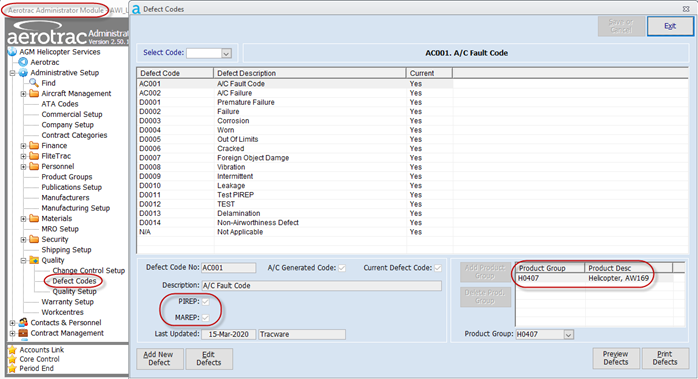
Each code added needs to be flagged as PIREP and / or MAREP, via the tick boxes and assigned to the relevant Aircraft Product Group.
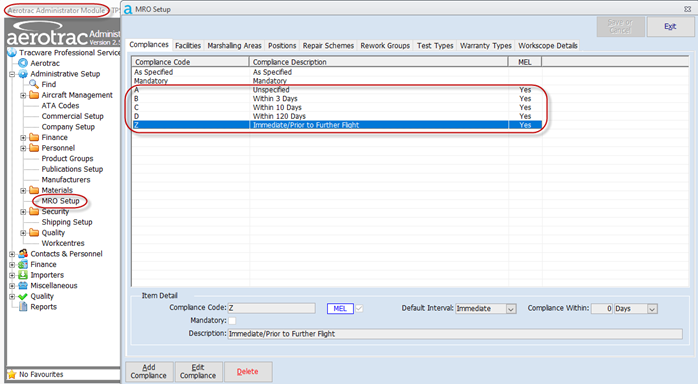
Finally, you should find that the Compliances required for the MEL tasks are already populated in the MRO Setup screen found in the Administrator Module under Administrative Setup :-
A/C System of Management Task Cards - MEL
If your Aerotrac system has the Reliability Module activated, then it is a requirement that you have all of the MEL tasks setup in the system.
The MEL task cards can be added manually, one at a time via the A/C System of Management screen or imported via the Data Importer.
To manually add MEL task cards, go to the System of Management screen found in the main Aerotrac module under Aircraft Management.
Click the “Add New Document” button and select the type as “MEL”.
Click “OK” :-

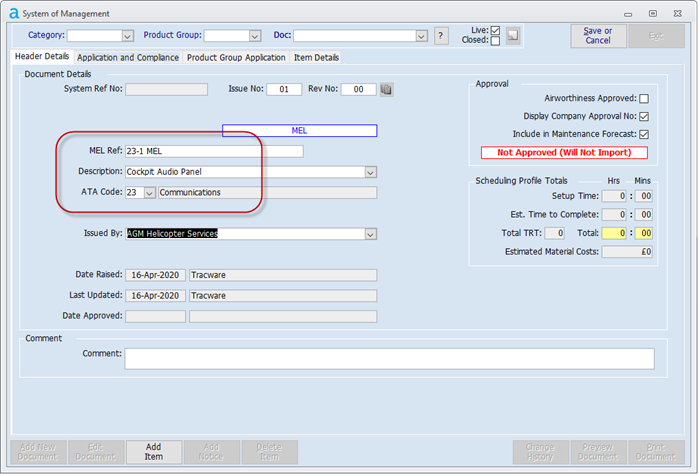
You can now enter the relevant detail for the MEL task on the first Header Details tab. This should include the “MEL Ref”, “Description” and “ATA Code” :-
Moving across to the second “Application and Compliance” tab, you can now enter all other relevant detail such as “Default Maintained Under”, “Workcentre” and “Trade” etc. as necessary :-

Moving down to the “Compliance” section, you will notice that the “Compliance Code” drop down combo only contains those compliances set up and flagged as “MEL”. Refer to the section above on “MEL Task Compliances” :-

Select the relevant code and the system will automatically set the compliance “Interval” and the “Compliance Within” number of days :-

If you select Compliance Code “A” then you will be allowed to enter your own “Compliance Within” Hours, Landings/Cycles and / or number of days.
Moving across to the third “Product Group Application” tab click the “Add Prod. Group” button and select the relevant Aircraft Product Group from the next pop-up screen.
Click “OK” :-

On the fourth “Item Details” tab click the “Add Item” button and enter the ATA code (ideally level 1 and level 2), the “Description” and “Task” detail for the MEL task :-
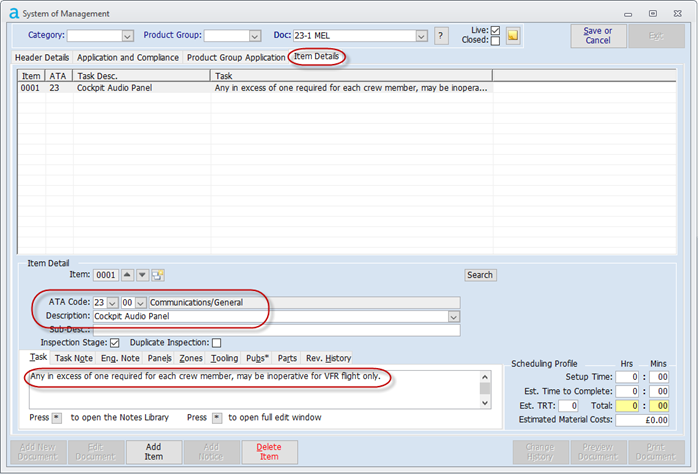
You can enter additional detail on the subsequent lower tabs as required but these are not mandatory :-

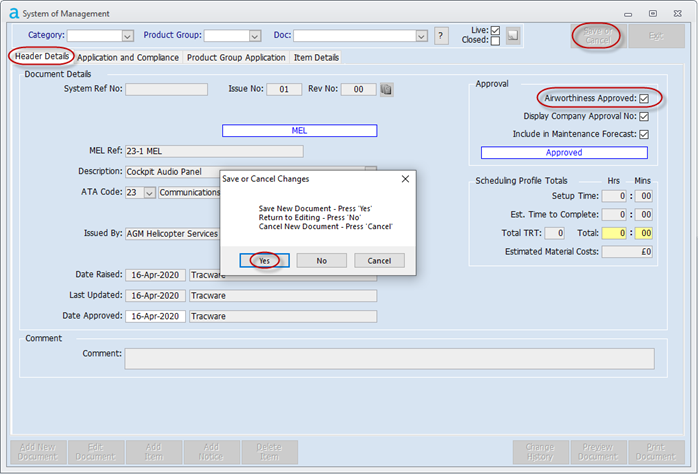
Finally, you need to return to the first “Header Details” tab in order to approve the task card prior to saving. This is achieved by ticking the “Airworthiness Approved” tick box.
Once all data has been entered, save the task.
Note: If the task is not approved then it will not import into the Aircraft Status screen for scheduling purposes.
If you are wishing to input all the MEL tasks, as provided by the OEM, in one go then you can use Aerotrac Data Importer to do this :-
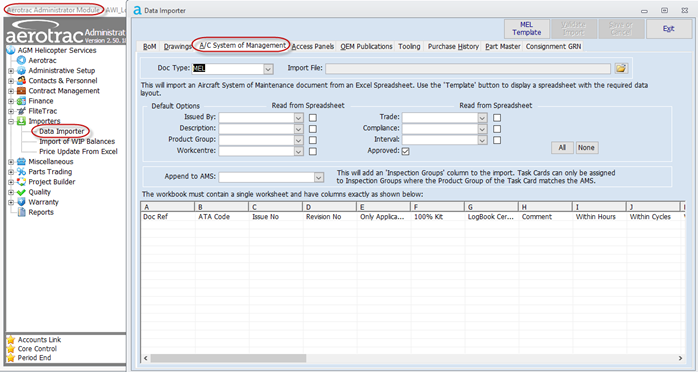
Refer to topic “Data Importer – AC System of Management” that covers the import process. It also covers how to produce the import template spread sheet and how to populate the spread sheet with the correct data.
PIREPS
Once the MEL tasks and compliances etc. have been set up, they can be used in recording and managing defects, as reported by the flight crew, via the Aircraft Utilization screen.
All aircraft flight times are entered into Aerotrac as Sector Record Pages (SRPs) through this screen. For full details on adding Aircraft Utilization refer to topic “Aircraft Logbooks and Updating Utilization”
For each utilization entry added to this screen, there is a “Document & PIREP” tab available where the user can attach an electronic copy of the flight log, and / or add PIREP details.
To initiate the adding of a PIREP, on the lower “Document & PIREP” tab, tick the “PIREP” tick box :-

Once all other detail has been added and the Utilization entry is saved, the “Raise Defect” button becomes active :-
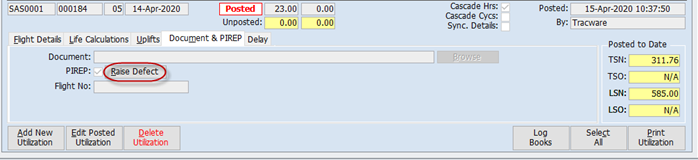
This “Raise Defect” button (when pressed) will take the user directly to the “Defects and C/Fwd” tab of the Aircraft Status screen for the relevant aircraft. All the SRP details will be imported.
You need to complete the defect by selecting a relevant “Defect Code”, the ATA Code (ideally level 1 and level 2) and entering a “Description” for the defect.
Finally, if the defect is subject to the MEL, tick the “MEL” tick box and select the associated “MEL Ref” / task from the drop down :-

Once all details have been entered, save the Aircraft Status screen.
Note: The pre-populated MEL task(s) will only appear for selection if the level 1 ATA code set on the defect matches that set on the MEL task card(s).
Note: If required, the defect can be added directly via the Aircraft Status screen thus avoiding the entry via the Aircraft Utilization screen.
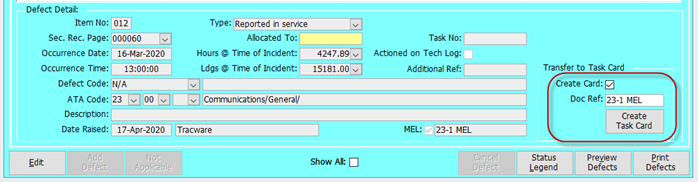
Note: The selection of the MEL task in the drop down is based on your Aerotrac system having the Reliability Module activated and the MEL tasks pre-populated. If the Reliability Module is not activated, then MEL tasks do not have to be pre-populated and the raising of the MEL task is a manual process achieved by entering the MEL reference in the free text field and creating the task, “on the fly” via the “Create Task Card” button :-
Once the defect has been added and saved, and is categorized as a MEL defect, the Aircraft Status will refresh itself and present a newly created MEL task card (containing the MEL reference) for importing :-
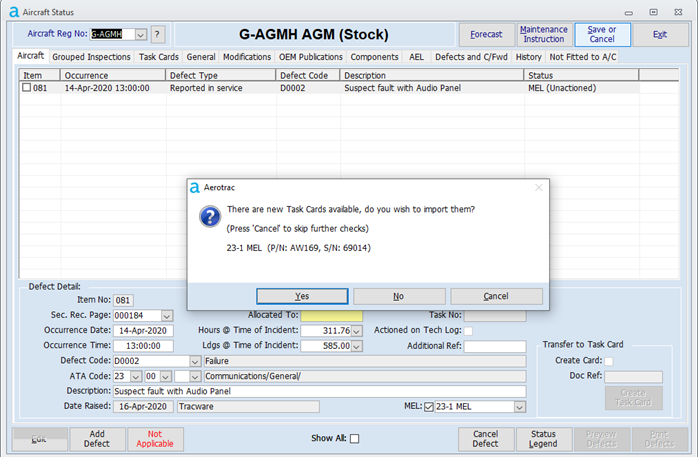
Select “Yes” to import the task and save the Aircraft Status screen.
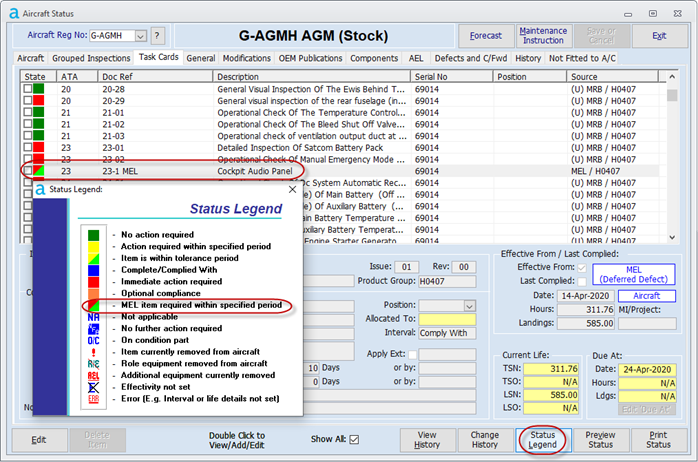
The task will then import into the “Task Cards” tab and will be scheduled according to the specified MEL compliance.
A MEL red/green icon will display alongside the newly created task card to indicate that this is a MEL defect (The “Status Legend”, available by clicking the button at the bottom of the screen, refers) :-
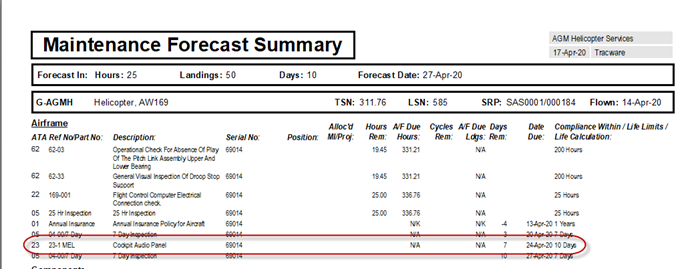
Now that the MEL task has been imported into the Aircraft Status as a scheduled event, the open MEL item is displayed on the Maintenance Forecast report :-
The MEL defect can be rectified by raising a Maintenance Instruction and / or Hangar Project, using the newly created task card and actioning it in the same manner as all other scheduled/unscheduled maintenance items.
The Status Board also contains a page to display the status of open defects on each aircraft in the system :-
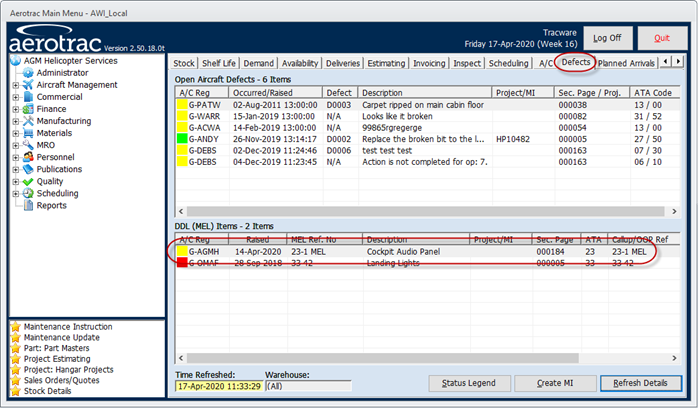
The upper section shows all non-MEL defects while the lower tab “DDL (MEL) Items” shows only those defects which have been processed and selected as MEL, as above.
The Status Board also displays an icon for each defect indicating the status. The Status description can be seen by clicking the “Status Legend” button located at the bottom of the screen :-

Carried Forward Defects (Deferred Defects)
Maintenance Update / Hangar Project
While hangar maintenance is being carried out, unscheduled maintenance tasks, that are flagged as defects, can be deferred in accordance with the MEL criteria. Aerotrac can control this in a fashion very similar to that outlined above.
The key to this is the point at which the Task for the unscheduled maintenance item is being actioned in the hangar project (this can be via the Inspection Workbench or in the Hangar Project Technical Details screen) or Maintenance Update.
Once it is known that the item can be carried forward and is going to be deferred in accordance with the MEL, the user must tick the “Defect” tick box and select a “Reportable Defect Code” :-
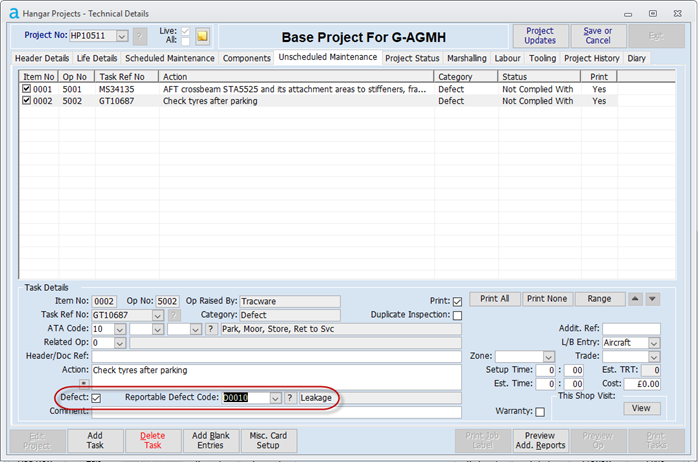
At the point where the “Compliance” screen is opened (this can be via the Project Updates screen, either accessed directly or from the Inspection Workbench, or via the Maintenance Updates screen) , the user has the option to set the Task as “Actioned”, “Carried Forward” or “N/A”.
In this instance the user should tick the “Carried Forward” option and enter a statement as to how and why the defect is being carried forward :-

It is very important that this is made very clear so that Technical Records staff can notice that this task is being carried forward and needs to be deferred per the MEL.
Once complete, save and confirm the Tasks as usual.
Once the Task has been “Confirmed”, either via the Hangar Project or the Maintenance Update, the Aircraft Status will be updated to include the carried forward item as a defect in the “Defects and C/Fwd” tab :-
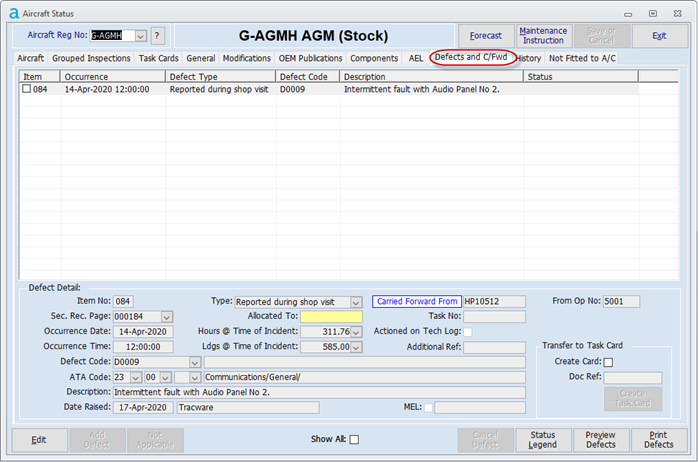
At this point, the Tech Records staff need to go into the Aircraft Status screen and flag the item as a MEL defect by ticking the “MEL” tick box and selecting the relevant “MEL Ref”, as before :-
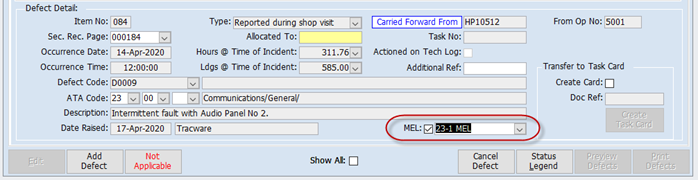
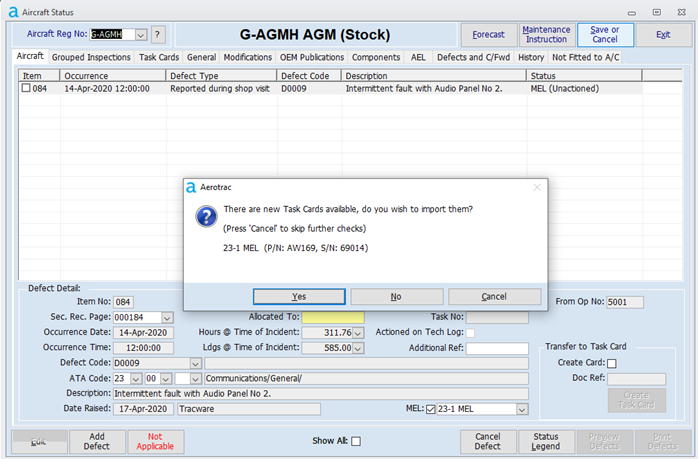
Once saved, the Aircraft Status will again refresh and will detect the newly created MEL Task card, which it will then try to import :-
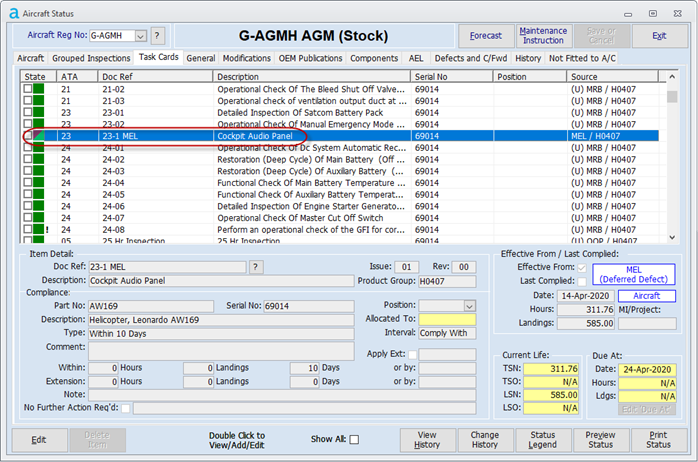
As described earlier, once imported, the task card for the MEL defect will then appear in the “Task Cards” tab :-
Again, as described earlier, the status of the MEL task card can be viewed on the Status Board and seen on the Maintenance Forecast.
Rectification of the defect can be managed through a subsequent Maintenance Instruction and / or Hangar Project.
Aerotrac Version v2.50.19.01, August 2020
Not controlled once printed
END