



Print this Topic
Overview
The Drawing Register is designed to hold the details of your drawings that are used in the Manufacturing and / or Modification processes. It helps track the revision status and allows them to be booked out and so provide a history of their usage.
Setup
The only setup required for the Drawing Register is the "Drawing Type" that you select when adding a new drawing.
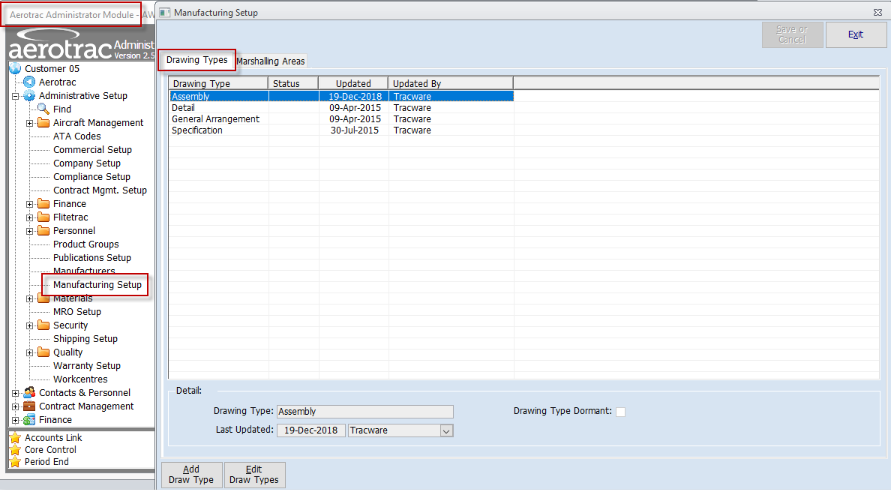
The "Drawing Types" need to be defined and this is achieved via the "Drawing Types" setup screen.
In the Administrator Module, navigate to Administrative Setup, Manufacturing Setup and add the required drawing types on the first tab, via the "Add Draw Type" button :-


The Drawing Register
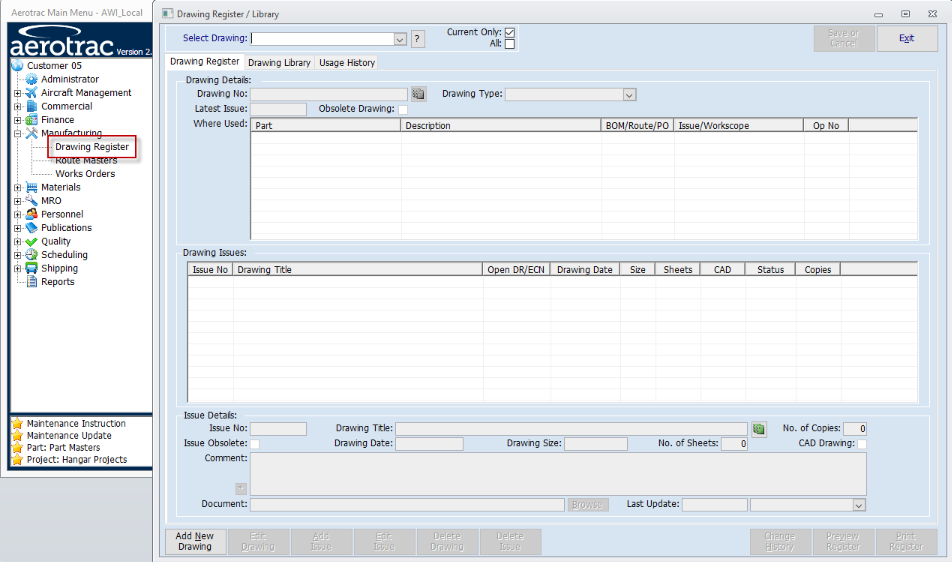
From the Aerotrac main menu, navigate to Manufacturing, Drawing Register :-
Drawing Register
The screen loads on the first "Drawing Register" tab
Existing drawings can be selected in the drop-down combo located at the top left of the screen :-
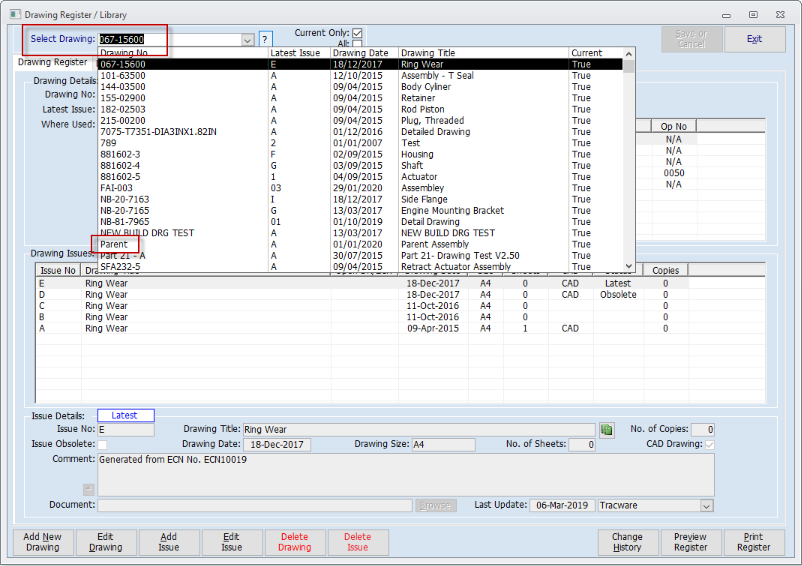
To add a new drawing click the "Add New Drawing" button located at the bottom left of the screen.
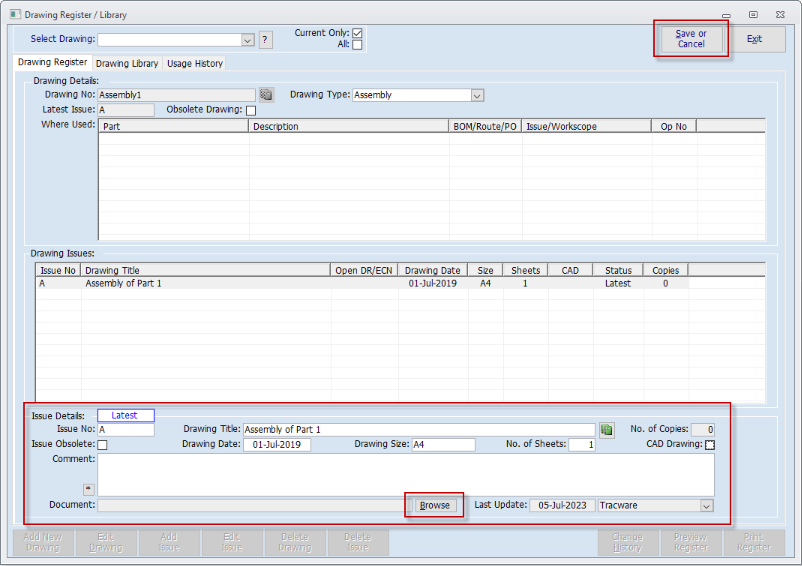
Enter the "Drawing No" and select the "Drawing Type" from the drop-down combo :-

Next, enter the "Issue No". Using the tab key on the keyboard will open all the other fields for entry of the required data :-
Note: The "CAD Drawing" tick box is just a flag and does not drive any other functions within the software.
If you have a scanned copy of the drawing in a suitable shared location on your server then this can be linked, in the usual manner, via the "Browse" button at the bottom of the screen.
Save the Drawing Register via the "Save or Cancel" button located at the top right of the screen.
If an existing drawing is selected, the "Edit Drawing" button allows for the editing of the existing Drawing Type.
The "Add Issue" button allows you to add subsequent issues of the drawing into the register.
Add all other details as above :-.
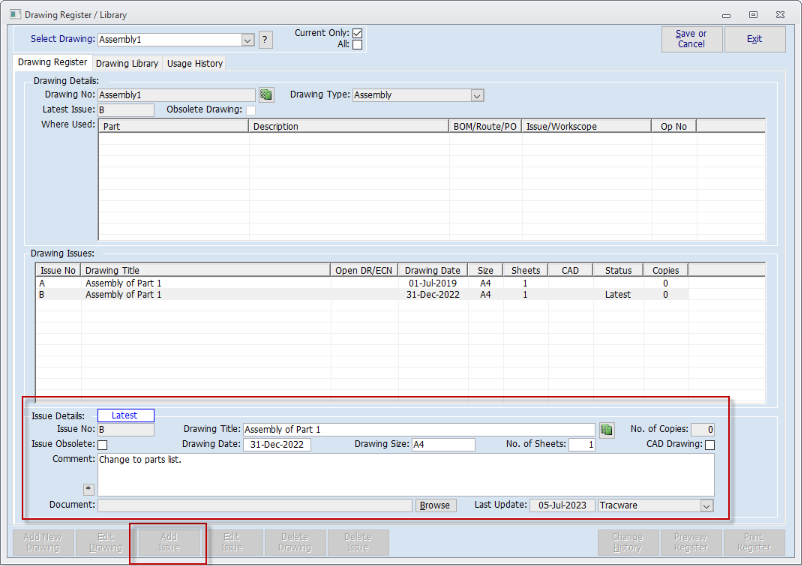
The most recent issue added becomes the "Latest".
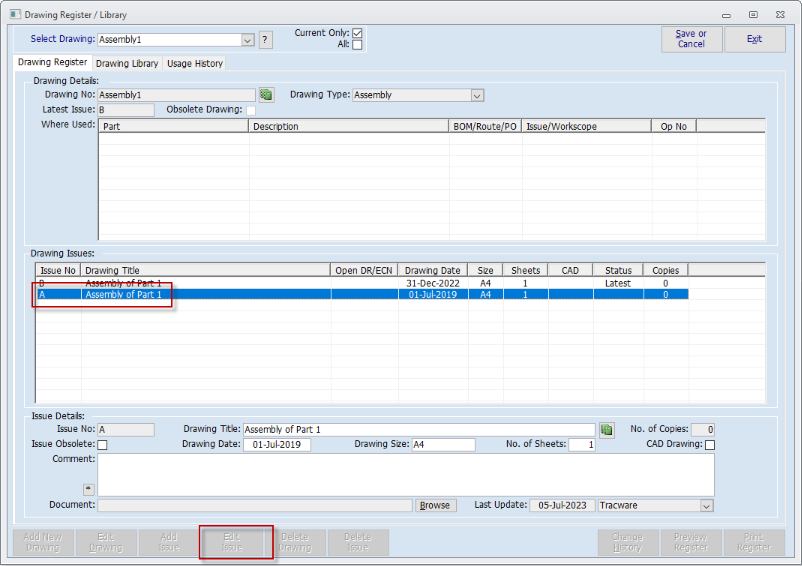
Once saved, the "Edit Issue" button allows for the details, of the issue that is selected in the table view, to be edited :-
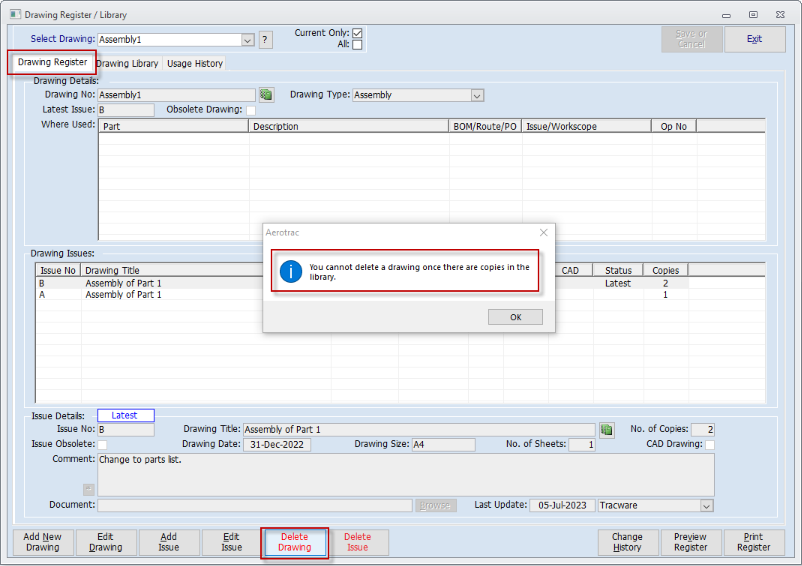
The "Delete Drawing" button allows you to delete the drawing as long as no copies have been added to the library :-
The "Delete Issue" button allows you to delete the drawing issues as long as no copies have been added to the library.
Click the "Change History" button to open the Change History report, if this function is enabled.
The "Preview Register" and "Print Register" buttons allow for the previewing and printing of the Drawing Register report.
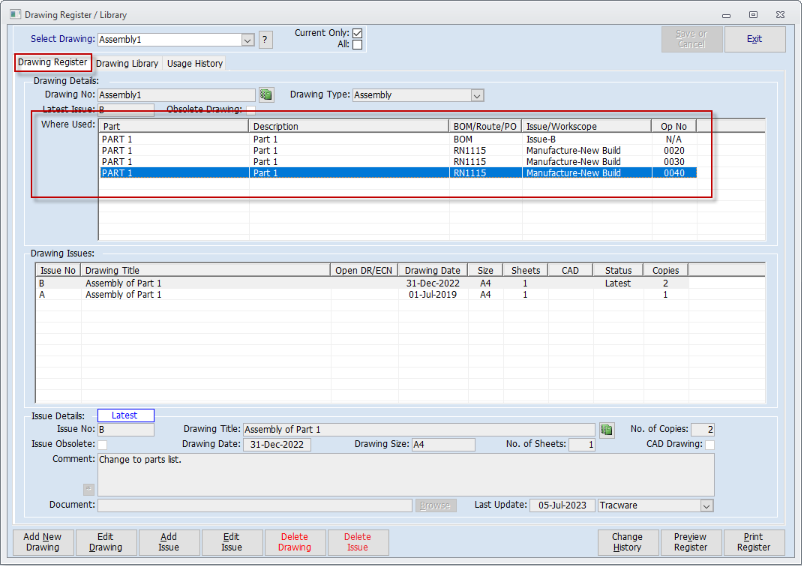
The "Where Used" upper table will populate with data as drawings are linked to BoMs and assigned to Route Masters :-
Drawing Library
Once the basic drawing information has been added to the Register, you can now add specific details for each physical copy of the drawing, via the "Drawing Library" tab.
Note: The copies added to the Library are specific to each Issue added to the Register. Ensure that the correct "Issue" is highlighted in the Drawing Register table before adding a copy to the Library.
Click the "Add Copy" button to add a copy to the Library. Add a comment as required :-
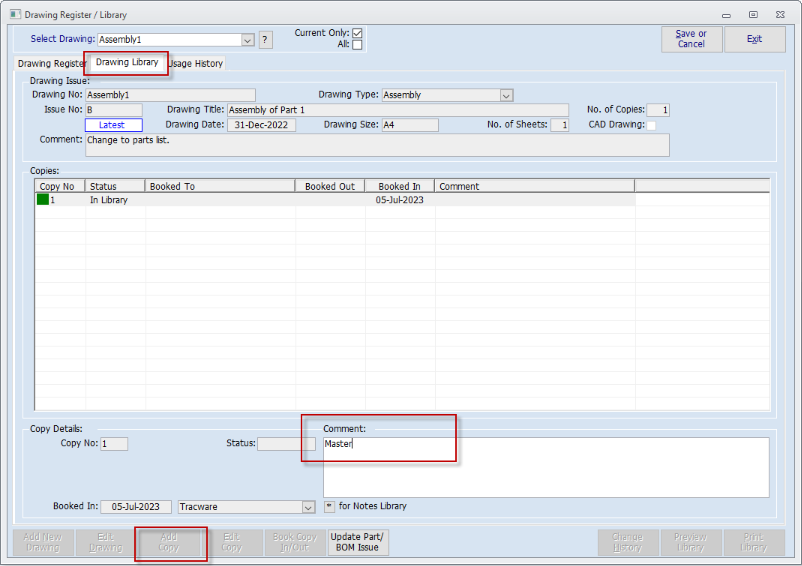
Once saved, the "Edit Copy" button allows the comment to be edited.
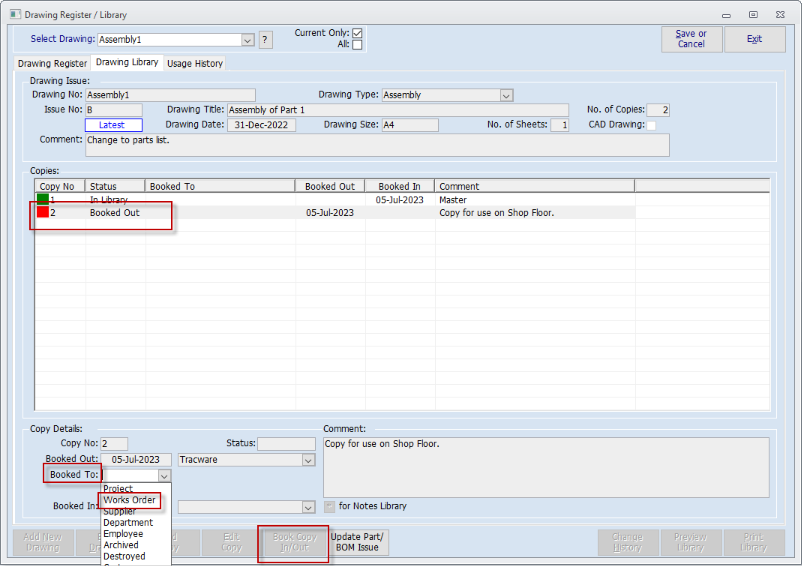
Click the "Book Copy In/Out" button to issue the particular copy of the drawing out for use.
Select the "Booked To" option subject to whether it is being issued to a Project, Works Order etc :-
Subject to the selection made above, the adjacent drop-down combo will provide the relevant list of orders to book to :-
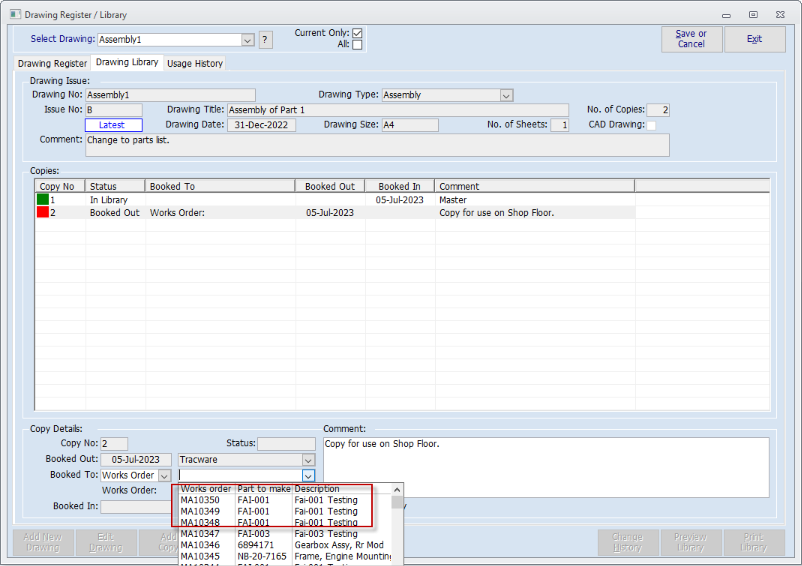
Save the screen to complete the booking process. This drawing copy will now display on the Drawings Issued table of the relevant Works Order.
Once the drawing has been used it can be returned to the library again via the "Book Copy In/Out" button :-
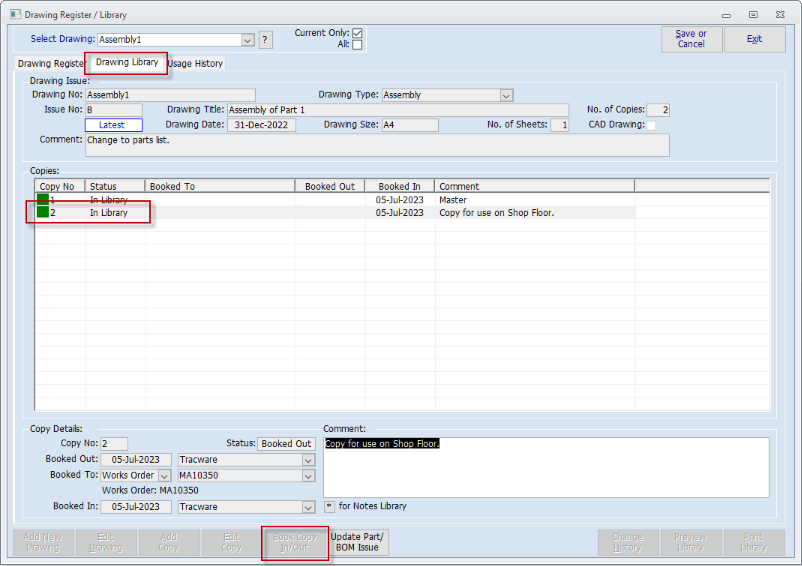
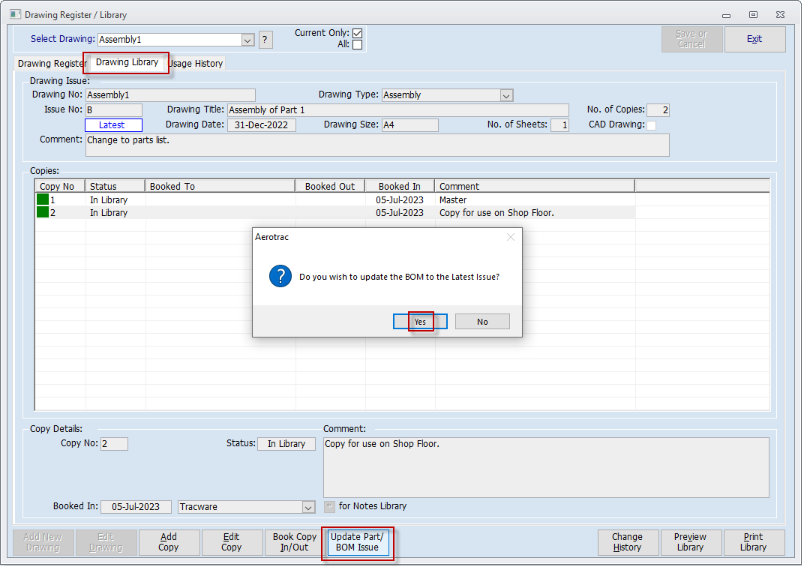
The "Update Part/BOM Issue" button updates the linked Part Master record and BOM parent with the details from the selected copy :-
The "Change History" button provides the same function as described above under "Drawing Register".
The "Preview Library" and "Print Library" buttons allow for the previewing and printing of the Drawing Library report.
Usage History
As the drawings get booked out to the various manufacturing Works Orders, and they are booked back in again after use, the "Usage History" tab records these transactions.
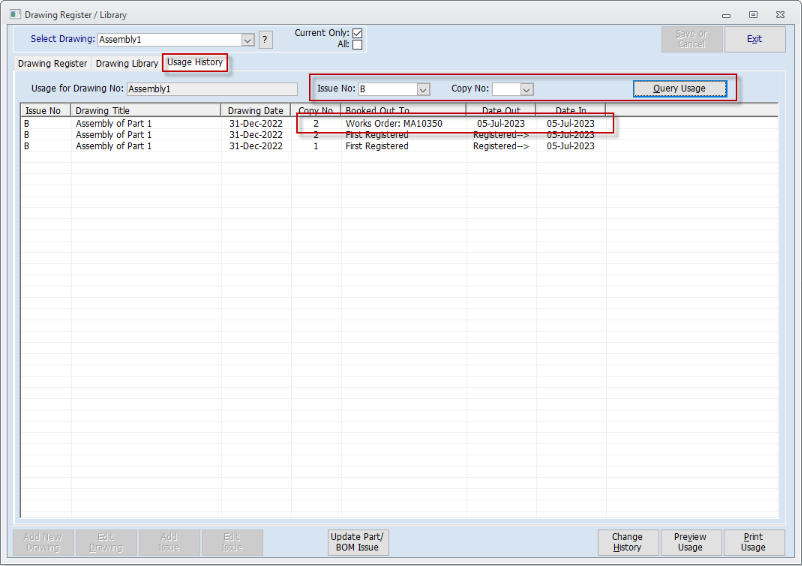
On the "Usage History" tab, select the "Issue No" and "Copy No" from the relevant drop-down combos and then click the "Query Usage" button to display the data for that selection :-

The initial registration details and bookings for the selected Issue / Copy will be displayed :-
Aerotrac Version - 2.50.27.03c, July 2023
Not controlled once printed
END