Print this Topic
As explained previously there are 4 ways to identify tools requiring calibration. The 'Status Board', e.g., will notify the user when a tool is due for calibration.
Booking out Tool for Internal Maintenance/Re-calibration
| Steps | Navigate To | Screen | Instruction | Image |
|---|---|---|---|---|
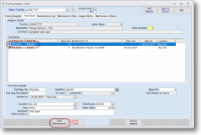
| 1 | Quality | Tooling Register / Issue | Select the tool's product number. Select the 'Tool Stock Tab' and select the tool serial number or tool number that requires maintenance and click on the 'Edit Tool Stock' | |
| 2 | Quality | Tooling Register / Issue |
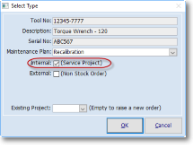
Click on the 'Tool Maintenance' button and you will be presented with a 'Pop up' screen called 'Select Type'. Important: If there is more than one 'Maintenance Plan' defined you must choose the appropriate maintenance plan. Based upon the settings of that particular Maintenance plan Aerotrac will configure the 'Pop up' screen accordingly. If not already Ticked in 'Internal:' then tick to choose the Service Project approach. Click on the 'Ok' button. Note: Aerotrac will automatically navigate you to Workshop Projects and launch a 'Stock Service Project' and populate its 'Header Details' with the Tool Information. |
|
| 3 | MRO - Projects | Workshop Projects |
Complete the form, enter: Date Required, Release Type and any other pertinent information and save. |
|
| 4 | Scheduling | View/Update WiP | Process the Workshop through to completion | |
|
END | ||||