



Print this Topic
Overview
We have been made aware of instances where customer's SQL servers are being limited on space and, on investigation, it is found that the Aerotrac_Data_log transaction file has grown to a very large size.
This file is a transaction log used by SQL Server and grows and grows with each User transaction made to SQL by a related client application, in this case, Aerotrac
To reduce the size of this file, and so limit its impact on your SQL server performance, our Programmers have come up with a routine that can truncate the log file and reduce its size to only a few KB. This routine can be run from the Aerotrac Database Administrator.
The Database Administrator app is available for download from the Software Updates section of the Tracware Support Website.
The app has various options for maintenance of the database including the Truncate Log function.
Note: Truncating the Aerotrac_Data database log file can only be carried out when there no users are in the system.
Note: Only Users set in Aerotrac as "System Administrator" in the User Setup will be able to log into the Database Administrator app :-

Once you have access to the Database Administrator app, launch it and log in using your normal Aerotrac log in user name and password and click "OK" :-

Note: You need to ensure that the correct "Company" Name has been selected at the login stage
Click on the database line for the database that you wish to truncate the log file and ensure that the correct database is displayed at the top of the screen.
Click the "Truncate Log" button :-

You will see the following pop-up message. Ensure that you read and heed the warning and then click "Yes" if you wish to proceed :-
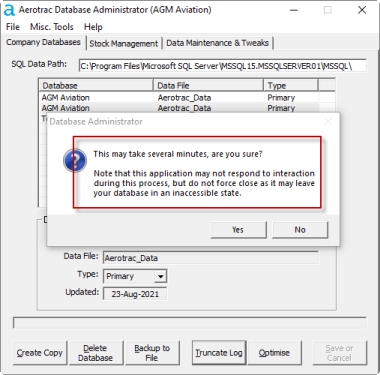
Note: Truncating the Aerotrac_Data database log file can only be carried out when there no users are in the system. If there are connected users, you will get a message warning you of this fact. This may indicate that you do have users still in the system or that users have previously not logged out of Aerotrac in the correct manner.
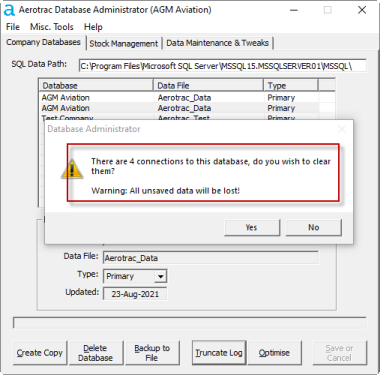
Selecting "No" to the above pop-up will stop the truncation process and produce the following pop-up :-
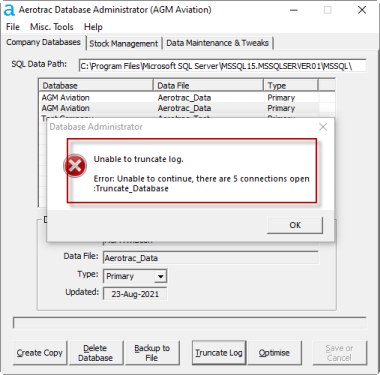
Selecting "Yes" to clearing the active connections will allow the truncation process to continue.
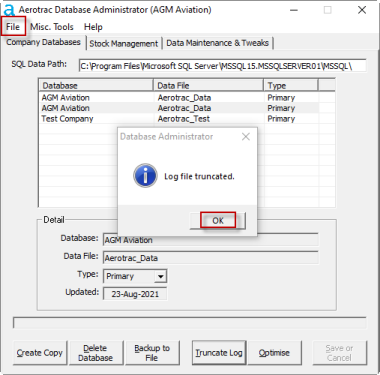
Once truncation of the log file is complete you will see the following pop-up. Click "OK" and exit the Database Administrator app via the file menu at the top left :-
Aerotrac Version - N/A, August 2021
Not controlled once printed
END