



Print this Topic
Technical Library
This Guide has been published for those Aerotrac Users that run or operate a 'Technical Library Process'. This is the process of recording for all 'Publication Holdings' (Locations with Recipients) the receiving, updating and distribution of 'Publications' throughout the Organisation using the 'Transmittal Process'.
How the Publications influence and impact on 'Maintenance Schedules' is another subject area altogether.
Note: It is assumed that the User has some experience of using and navigating around Aerotrac.
Topic Contents
Creating the Publication or Manual
Attaching or Assigning Publications to Manuals
Summary for Attaching or Assigning Publications to Manuals
Holdings Setup when Attaching or Assigning Publications to Manuals
Adding a Holding Recipient Specifying a Manual No with Publications Assigned
2. Change the Description of the Publication Type
3. Query on Publication not Appearing in the Holdings Screen
4. The Publication Type is Missing
5. Change the Publication Number
6. Hold a Log of All Publications Coming Through the Technical Library
These are some of the various types of 'Publications' that an Organisation might have in its 'Technical Library'.
Examples :
-
Maintenance Manuals
-
Service Bulletins
-
Structure Repair Manuals
-
Illustrated Parts Catalogues
-
Service Letters
-
Company Procedures (Health & Safety etc.)
IMPORTANT NOTE: As Aerotrac manages Maintenance by targeting Instructions / Publications to Product Types, it is not necessary to make the Publication Types Manufacturer or Product specific. This is done by Assigning the Publication Type to the Manufacturer or Airworthiness Authority. As a “Rule of Thumb” keep the Publication Types to the absolute minimum, making them Generic for all Products to be maintained.
In the Administrator Module navigate to Administrative Setup → Publications Setup.
Aerotrac defaults to the Publication Types tab. The screen is split into two - the Publication Types Table view at the top and the "Assigned to Manufacturers" Table view at the bottom.
'Publication Types' are created within this screen using the Add Pub Type button. This is the only method of adding a 'Publication Type'. Using this process of adding a Type does not tie the Publication Type to any Manufacturer, this is effected when Types are available for assignment and selected in the dropdown list “Publication Type”.

Note: 'Airworthiness Authorities' are set as 'Manufacturers' in Aerotrac. In the Administrator Module navigate to Administrative Setup → Materials → Materials Setup → Manufacturers tab.

In the Administrator Module navigate to Administrative Setup → Publications Setup.
This process in Aerotrac attaches a 'Publication Type' to a 'Manufacturer' (Assigned Type). All 'Publications' require an Assigned Publication Type because this influences how the Publication is managed through 'Holdings'.
Each Individual Publication must be associated to a Publication Type when they are created in “View/Add” mode.
Examples of Publication Type Assignments (Publication Type + Manufacturer) :-
SB - Bell Helicopters
SB - Britten Norman
SB - Pilatus
AMM - Bell Helicopters
AMM - Britten-Norman Ltd
AMM - Pilatus
CEB - Rolls Royce
AD - CASA
AD - EASA
To create a Publication Type Assignment simply select the Publication Type, then a 'Manufacturer' checkbox and click on the “Edit Pub. Type” button. It will be assigned to the Manufacturer after Saving.

Assignment Dormant: if checked, the Publication Type Assignment is Dormant, unchecked it will be Active. A Type Assignment can only be deleted as long as there are no Holdings associated to it or Publications (see 'Holdings').
Technical Manual, Technical Instruction, Other Manual, Modification Leaflet and Primary Technical Manualall categorise a Publication Type Assignment as not being included in the 'Maintenance Forecasts' of the Product but to be treated as Manuals or Documents in their own right. The Primary Technical Manual will be the default Type printed in the various 'Maintenance Work Packs'.
A simple rule is that a Publication Type Assignment should be created for each 'Publication' series for the specific 'Manufacturer'. In that way the Publication can be managed through 'Holdings' for distribution and control.
For an example, a Dassault Aircraft Maintenance Manual (AMM) would be checked as a "Technical Manual" and a "Primary Technical Manual". A Service Bulletin (SB) would not be categorised at all as a "Manual" so would not be checked in any of these categories as they are used in the 'Maintenance Status' / 'Forecasts'.
The Holdings section in Aerotrac records the location of all Manuals and Revisions, and the status of Send and Receipt of those Revisions to their respective Recipients.
Holdings require Recipients to be "defined", meaning all the people responsible for handling Publications in their various Departments, Sections or Locations are identified.
From the Main Menu navigate to Publications → Holdings and select a Publication Type from the dropdown.
How the Holdings are presented

The screen above shows the Aerotrac User the number of Holders and their respective Spine, Volume and Copy numbers and their Locations. The Revision Status of the Manual / Volume and the respective Publications assigned to that Manual are displayed. The legends “No Transmittal”, “Not Printed”, “Not Received” & “Closed” show the status of each Revision on its movement from the Issuer to the Recipient. This is organised through Transmittals.
Note: See 'Publication Types Assignments' for 'Holdings Setup Diagram'.
Creating the Holdings

- Click on the “Add New Recipient” button and enter the details for the Recipient Holding along with the Manual's attributes.
-
Manual No : This should be left blank in most cases (see Appendix A for correct usage)
- Attention : The Location of the Volume
- Spine No : The Target ID for where the Revisions need to be stored
- Volume No : The Volume Number (if applicable)
- Copy No : The Copy Number (if applicable)
- Format : Used to determine whether the Manual is Electronic or "Hard Copy"
- Subs Due : Enter the date the next Subscription is due (if applicable)
- Subs Cost : Enter the cost of Subscription (if applicable)
- Comment : Add any applicable comments
- Cancelled : This box is valid after the Recipient's Holding has been created. Checking the checkbox will cancel the Recipient's Holding
Save each record and continue until all Recipients have been added. The User has now setup a Holding for this Assigned Publication Type.
In the example above the Holdings for a Bell Maintenance Manual have been entered.
The Holdings are not displaying any 'Revisions' and 'Manuals' or 'Publications' that are Assigned. These will appear when the specific Publications / Manuals have been created. This stage is purely to build the Holdings for this Assigned Publication Type.
Creating Holding Recipients
In the Administrator Module navigate to Administrative Setup → Publications Setup and select the Holding Recipients tab.

Each 'Location' and the person responsible for Holdings in those Locations need to be entered. They can be defined as being External Locations or Internal. The details will be used in the 'Transmittals' sent with each 'Publication Revision' to these Recipients.
Creating the Publication or Manual
So far this Guide has only prepared the background for managing the Publication or Manual (referred herein as "Publication") distribution and Holdings. The Publication DOES have to be created so it can fit into this framework for its distribution to be managed.
There are two methods in Aerotrac to build a record of a Publication.
- Receiving the Publication as a new Revision from the Manufacturer before it exists in Aerotrac
- Creating the Publication or updating the Revision prior to receiving through the Receiving Process in Aerotrac
Method 1 is the more logical way as it fits more closely to what happens in "real life". This Method is the preferred way to update a Publication Revision/Issue too, albeit that the Publication already exists in Aerotrac at an earlier version.
Method 2 is commonly used when the Publications are already present in Aerotrac but the Technical Library is not yet operational in Aerotrac.
Receiving Method 1 (Receiving the Publication or Revision)
Navigate to Main Menu → Publications → Receipts, and click on the “Add New Receipt” button. Press the Tab key to proceed through the fields in the correct order.

At the Received From field, select from the dropdown list the 'Manufacturer'or 'Authority'from where the Publications have been published.
Select the 'Publication Type'from the dropdown. This must exist for this Manufacturer and be pre-prepared. If Holdings have yet to be setup, Aerotrac will advise.
Enter the'Primary Application'. It is important to note that if this is the first time the Publication has ever been received then this dropdown should remain empty.
Select the 'Publication No.' from the dropdown list : If the Publication has not yet been created then click on the " * " button adjacent to it, called “Press * to Add/Edit”. This will open the 'View/AddPublications' screen.
If it has already been created and this is a 'Revision Update' then select the applicable Publication No. and then proceed by clicking on the " * " button to Edit the Revision Details.
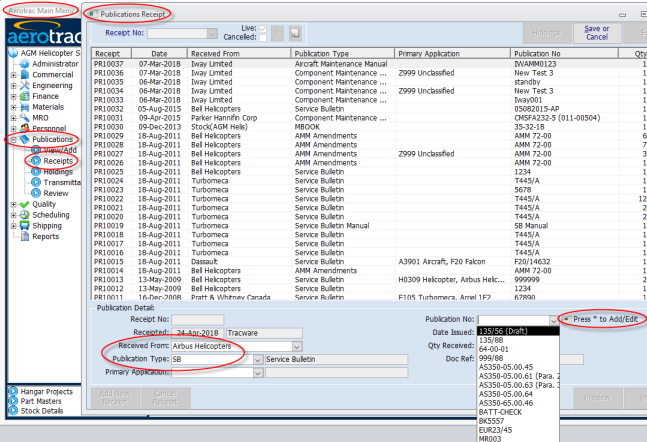
Note: This first example is the receiving of an Airbus Service Bulletin for the first time without it having been created previously in Aerotrac. Click on the " * " button.
The User will be presented with this screen :

The screen has configured itself for the 'Assigned Publication Type'.
Note: If this is a Revision Update and the Publication already exists simply edit the appropriate data.
Enter first the Publication No. This is the Manufacturer's unique reference number for this Publication. This will open more fields to be processed.
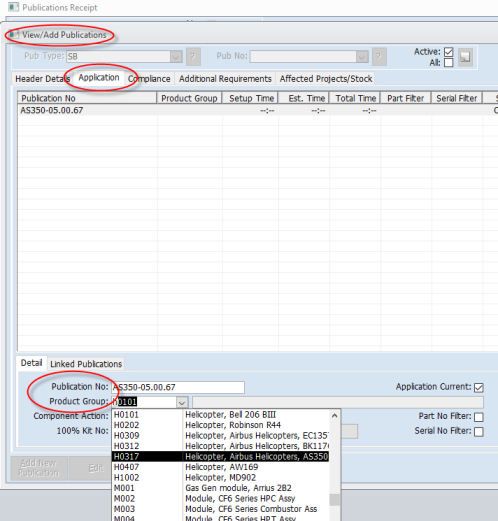
Complete or review the Header Details and select or review the Product Group from the Application Tab. Enter the data that is applicable on all the Tabs.
Receiving Method 2 (Creating the Publication or Revision Prior to Receipt)
This method assumes that the Technical Office has pre-prepared a 'Publication' or 'Revision' change directly from the Publications → View / Add menu selection.
If this has been pre-prepared it will be viewed in the 'Holdings' screen (for that 'Assigned Publication Type'), and will be displayed with “NA No Transmittal” in the "Revisions & Manuals Assigned" list which is a status of "waiting to be received".

Note: If the Holdings have not been pre-prepared prior to the Publication or Revision being created then the Publication Revision will not be displayed in the Holdings' "Revisions & Manuals Assigned" list. It must be received to be displayed.
To process this Publication "NA No Transmittal" to the Recipients/Holders it must be received in Aerotrac by following the Receiving process described previously.
Complete the Receipt and proceed on to 'Transmittals'.
As described previously, the 'Holdings' feature in Aerotrac records the Location and content of each Revision or Publication along with the status of each. The status displays the stage of the Transmittal Process reached.
The "Distribution To", and the "Confirmation of Receipt From" for both Internal and External departments, and for Customers who hold copies of Publications, is controlled by the use of Transmittal Notices.
Transmittal Notices are automatically created in Aerotrac when a 'Publication' is received.
These are the "Stages" or "Status" for the Transmittal Notice :
1. Not Printed - Publication has been received but the Transmittal has not been printed. Confirming the printing of the Notice will change the Status to "Sent"
2. Sent - Confirms a Notice has been printed and distributed
3. Closed - Confirms that the Transmittal has been actioned and returned by the Recipient
Configuring the Transmittal Notice Template
Many Organisations will want to use their own phrases and instructions for the management of sending and receiving 'Publications', so it is vital that the Transmittal Notice is configured to suit the 'Organisation's requirement's
Aerotrac configures the Transmittal through "Headers and Footers" and "Defaults".
Navigate from Aerotrac's Main Menu → Publications → Transmittals menu heading which will open the Transmittals Screen.

Click on the "Edit Header & Footer" button; the User will be presented with a screen sectioned into three Tabs :
Header - This displays text directly beneath the Recipient's details

Footer - This displays text beneath the Header sandwiching the Publication's Document Title.
Note: It does NOT display the text at the bottom of the page.

Defaults - This displays the body of the document, showing those instructions and return criteria that is appropriate in most cases for various 'Publication Types' or 'Revision Types'. These defaults will be applied to each Transmittal on its automatic creation.

These instructions will appear on each Transmittal for the Librarian to advise the Recipient how to action the instruction. Save the changes and return to the Transmittal screen.
Note: On each Transmittal itself, at any time, the Technical Librarian can overwrite the default details that are imported automatically by the Transmittal if a particular reason merits it.
Processing the Transmittal Notice
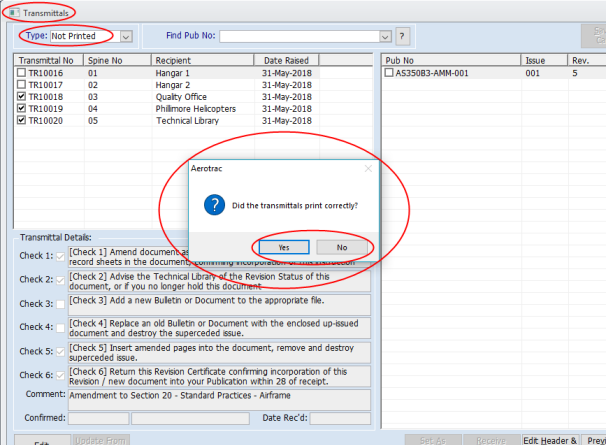
The first stage is to review the “Not Printed” Transmittal details (created automatically by the receiving process) and identify where the Publication needs to be sent, then edit accordingly by clicking on the “Edit” button and saving the changes. The checkboxes adjacent to the Transmittal Numbers and the Publication(s) determine which Transmittals and Publications will be sent by the "Print" function. These can be deselected as required.
Check the checkboxes of the Transmittal Details instructions which are most appropriate, and make any changes as appropriate.
Note: Each Transmittal (line item) should be changed as required.
At any time it is possible to "re-import" the original instructions by clicking on the Update from Defaults button. Save the record when complete.

The Transmittal Details that are checked are those Instructions that the Transmittal Recipient must carry out, and are displayed on the Transmittal Notice. These can be changed directly by clicking on the “Edit” button and saving the changes (as above), however it may be quicker to amend the 'Transmittal Notice Template' beforehand.
Click on the “Preview All Unprinted" button.
Note: At this stage the Status of the Transmittals will not change from “Unprinted”.
After reviewing the Transmittals they can be printed. After the printing process a message will popup in Aerotrac to confirm that the Print was successful. If the User confirms this, Aerotrac will change the Status of each Transmittal to “Sent”.
A typical Transmittal Notice :

If the User was to return to the 'Holdings' for this 'Assigned Publication Type', the Status of the 'Publication Revision' can clearly be seen as "Sent" and marked as “Not Received”.
Note: If the Librarian has made an error with the printing of the Transmittal Notice or wants to re-call the Notice, this can be achieved by selecting the Transmittal that has been sent and click on the “Set as Unprinted” button and save. See 'How Do I' No 01.

Confirmation in Aerotrac that the 'Publication Revision' has been processed by the Recipients is undertaken by the Technical Librarian when the Transmittal Notices are completed by the Recipients and returned.

The Librarian must return to the Transmittals Screen and select the Type: “Sent”.
The returned Transmittal Notice from the 'Holder' will be processed against the original Transmittal by clicking on the “Receive Transmittal” button.

Aerotrac will automatically add the details of the Holder, date and mark it as “Confirmed”. The Librarian can edit the details if necessary, and complete the process by Saving the record. This has to be processed for each individual Transmittal Notice Return Slip.
Returning to the 'Holdings' Screen will present the Librarian with a revised Status of the 'Publication Revision' as “Closed”. This completes the processing of the Transmittal.
Note: The Transmittal Notice cannot now be re-called by using the "Set as Unprinted" Feature button. This can only be achieved by editing the Publication Revision itself, deleting it in the Holdings Screen and re-applying the Receiving and Transmittal processes.

Attaching or Assigning Publications to Manuals
This covers those 'Publications' that are not Manuals but would not otherwise have a 'Holding' in their own right for the 'Assigned Publication Type'.
An example that fits this scenario accurately is a Service Bulletin (SB) and this Guide will use that category of Publication to explain the process.
SB’s are usually created by the Manufacturer to notify an Operator that certain Inspections, Tests or Changes are needed to satisfy the safe operation of an Aircraft Product. These SB’s usually come as a document that needs to be processed and applied to the Product in question. There can be many SB’s applicable to a particular 'Product Type' (Aircraft, Engine, Propellers etc).
SB’s are not normally considered as separate Manuals but they are "Controlled Documents" in their own right, and are susceptible to Revision changes. They are usually collected together in a Library into a specific folder for that SB’s Product Type (a Holding). They must be processed through a Technical Library, and be distributed to specific Recipients throughout (and possibly external to) the Organisation.
Aerotrac processes this type of document slightly differently from that of Manuals through 'Assignment to Manuals'. A Manual of some description is required and this is the specific folder or range of folders that stores the individual SB’s in their correct chronological order of issue.
EXAMPLE : Airbus Helicopters Service Bulletins (SB's)
The Manual will have a 'Publication Type' of "SB Manual" assigned to Airbus Helicopters as the Manufacturer. Holdings WILL be created for this Manual.

The SB’s will have a Publication Type of “SB” assigned to Airbus Helicopters as the Manufacturer. Holdings WILL NOT be created for this Publication.
The Process :
1. Review or Create a 'Product Group' for Airbus Helicopters (from the Administrator menu navigate to Administrative Setup → MRO → MRO Setup → Product Groups tab)
2. Create and Assign the Publication Type "SB Manual" to Airbus Helicopters. Configure as "Manual Other" (from the Administrator menu navigate to Administrative Setup → Publications Setup → Publication Type tab)
3. Create and Assign the Publication Type "SB" to Airbus Helicopters (from the Administrator menu navigate to Administrative Setup → Publications Setup → Publication Type tab). Do NOT configure 'Manual Types', leave the checkboxes empty

4. Create 'Holdings' for the SB Manual for Airbus Helicopters
5. Create SB Manual for Airbus Helicopters.
6. If the SB is not already held in Aerotrac's View/Add Publications, create it using the Receiving Process and Add New (launched from the Receipts screen), enter the new details by clicking on the 'Press * to Add/Edit' (Aerotrac navigates to the View/Add Publications screen). Enter the new number then press the Tab key, the remainder of the screen will open for editing. Enter more details using the other tabs (Application, Compliance, etc), and assign the SB to the SB Manual (select the recipients). It is important to note that the SB is being attached / assigned to the SB Manual Folder Spine codes, and NOT the Manual as a whole. Save the new bulletin and return to the Add Receipt screen, then enter the quantity received and any document reference number.

7. Print Transmittals for the new SB (Airbus Helicopters SB Manual by processing each Transmittal's details (instructions to Recipients), Save these, Print and Close.
8. The SB is now highlighted in the SB Manuals Holdings because it is assigned to each Spine Number, and does not have any Holdings in its own right. In simple term, it becomes a "Child" of the "Parent" SB Manual, which DOES have Holdings.

9. Print Transmittals for the SB's (editing instructions as required), Process and Close.

Summary for Attaching or Assigning Publications to Manuals
This is the recommended process for any Publication that is controlled in its own right but requires to be grouped together in a ledger or folder at the Recipients' Holding.
Important! Attaching Publications to Manuals must be done prior to completing the Receipt Process and before processing Transmittals, otherwise Aerotrac will NOT Produce a Transmittal for the Recipient of the Holding.
As previously explained it is important to keep the Publication Type as generic as possible. If a series of Publications apply to the Assigned Publication Type and its Holdings, Aerotrac can attach/assign independent documents to the Spine number which is specific to the exact Location/Holding that the Publication is referenced to and stored within. This means that all Manuals specific to the generic Type and Manufacturer can be grouped in one Holding. It is not necessary to have a separate Holding specifically created for every Publication.
As a simple “rule of thumb” when it comes to building the Holdings, the User should create the Holdings for an Assigned Publication Type that is a Manual/Folder referenced to Type and Manufacturer.
Holdings Setup when Attaching or Assigning Publications to Manuals

Holdings and When to Choose the "Manual No" Reference Field

NEVER!!!
Unless you require the following scenario :
Adding a Holding Recipient Specifying a Manual No with Publications Assigned
- 'Transmittals' will be created for each Issue/Revision of the Manual when the Manual is received through 'Publication Receipt'.
- No Transmittals will be created if receiving the 'Assigned Publications' themselves (unless they have 'Holdings' setup in their own right).
How Do I?
Aerotrac has a feature that can re-call the sending of a 'Transmittal' for whatever reason. The 'Status' "Sent" is created after the Transmittal has been printed and confirmed. The User must first select the 'Transmittal Type': as "Sent" then choose the appropriate Transmittal for the re-call and click on the "Set As Unprinted" button and Save. The Transmittal will now have a Type "Unprinted".

2. Change the Description of the Publication Type?
In Administrator Module, navigate to Administrative Setup → Publications Setup → Publication Types tab. Select the 'Publication Type' from the top Table view, and the 'Manufacturer' from the lower Table View. Click to Edit the Type, make the required changes and Save.

3. Query on Publication Not Appearing in the Holdings Screen?
- The Publication was changed without a new revision number
- The Holding was created after the Publication
- A receipt has not been created
- A Manual Reference Number has been chosen in the Holding. (See Appendix A)
4. The Publication Type is Missing
See 'Publications Types' in this .Topic
5. Change the Publication Number?
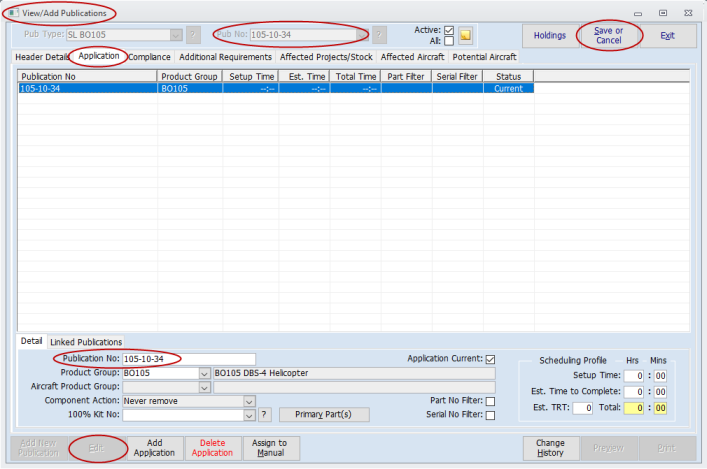
It is possible to edit a Publication number only against its “Application”. From the main menu, navigate to Publications → View/Add, select the required Type and Number from the dropdown lists at the top of the screen, click on the Application tab and Edit as required before Saving.
This will then be the Publication Number listed in the combo for selection, however the “Publication No” on the Header Details tab will remain 'as is' since this is a unique key in the data tables and cannot be changed once added.
6. Hold a Log of All Publications Coming through the Technical Library
From either menu, navigate to Reports → Publications and choose Publication Receipts PUBS0006.
Publication Reports
Available reports are currently :

- PUBS0002 Publication Register - lists Publications in a "Register" format
- PUBS0003 Publication Listing - lists Publications by Product Group
- PUBS0004 Publication Holdings - lists all Publication Holdings by Recipient
- PUBS0006 Publication Receipts - lists all Publication Receipts by Manufacturer
- PUBS0008 Publication Review - lists Publication Issue Numbers and Revisions
- PUBS0009 Publication Types Held - lists all Publication Types held
- PUBS0010 Publication Review Status - lists Publications which have and / or have not been Reviewed
All the reports have multiple filters available for selection or de-selection.
Aerotrac Version v2.50.13.01f, July 2018
END