



Print this Topic
Overview
The Database Administrator app is available for download from the Software Updates section of the Tracware Support Website.
The app has various options for maintenance of the database including the ability to create a test or training database from a copy of your live database.
Note: Only Users set in Aerotrac as "System Administrator" in the User Setup will be able to log into the Database Administrator app :-

Once you have access to the Database Administrator app, launch it and log in using your normal Aerotrac log in user name and password, then click "OK" :-

Note: You need to ensure that the correct "Company" Name has been selected at the login stage
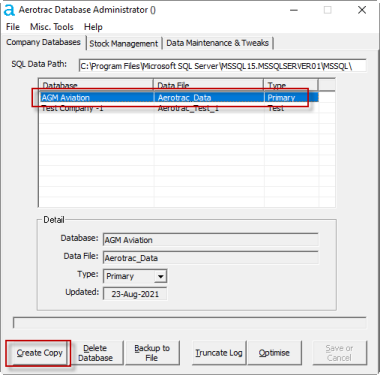
On the first "Company Databases" tab, highlight the line in the table view for the database that you wish to copy (this would usually be the Aerotrac_Data, Primary database) and click on the 'Create Copy' button :-
Enter the details for the new "Database" name and "Data File" :-
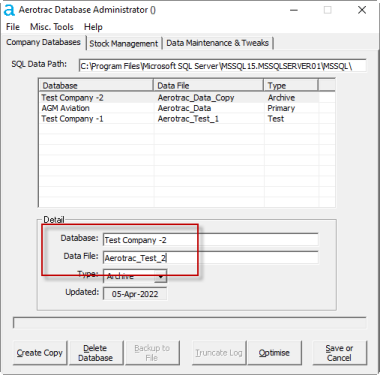
Note: The Database name is what appears in the Aerotrac login screen. The Data File is the name of the SQL Server database that will be created. For the Data File, use a format similar to that shown in the screen print above.
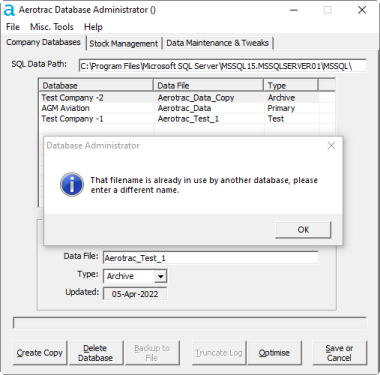
If you try to use the same file name as one that already exits then you will see the following pop-up message and you will need to enter a new file name :-
Next, select the type of database. In this case, select 'Test' and OK the following pop-up message :-
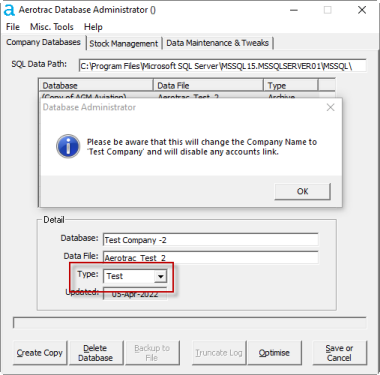
You can now save, and the Database Administrator app will copy the Primary Company database and add a new Test Company :-
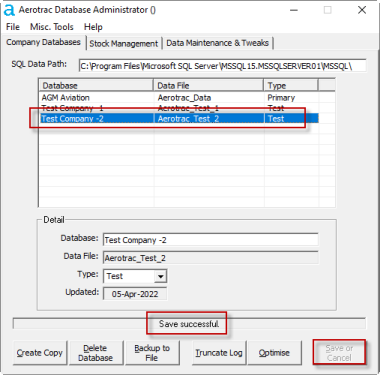
You can now log into Aerotrac and select the new Test Company. Use the same login in credentials as you do when using the live company :-
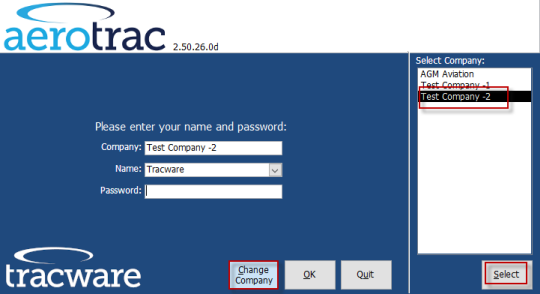
Aerotrac distinguishes the difference between the primary 'Live' company and 'Test/Training' company by changing the border colour from blue to red :-

If required, existing old test company databases can be removed.
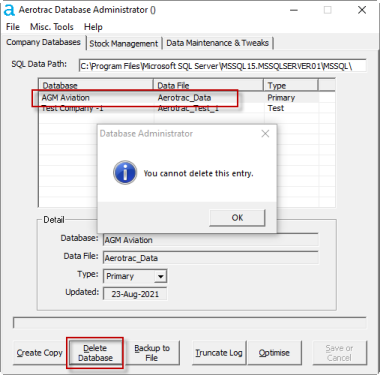
Click on the relevant line in the table view and click the "Delete Database" button.
Note: Aerotrac_Data is the primary live database and cannot be removed so there is no danger of deleting your live primary database while in the Database Administrator app :-
Aerotrac Version - N/A, April 2022
Not controlled once printed
END