



Print this Topic
Using the "Requests" Functionality
This topic covers the usage of the "Requests" functionality.
The example used in this topic is "Parts Requisitions for Stock" but the same basic principles apply to the other functions within the Request system.
From the Microsoft Access Ribbon, select “Requests” from the "Home" tab :-
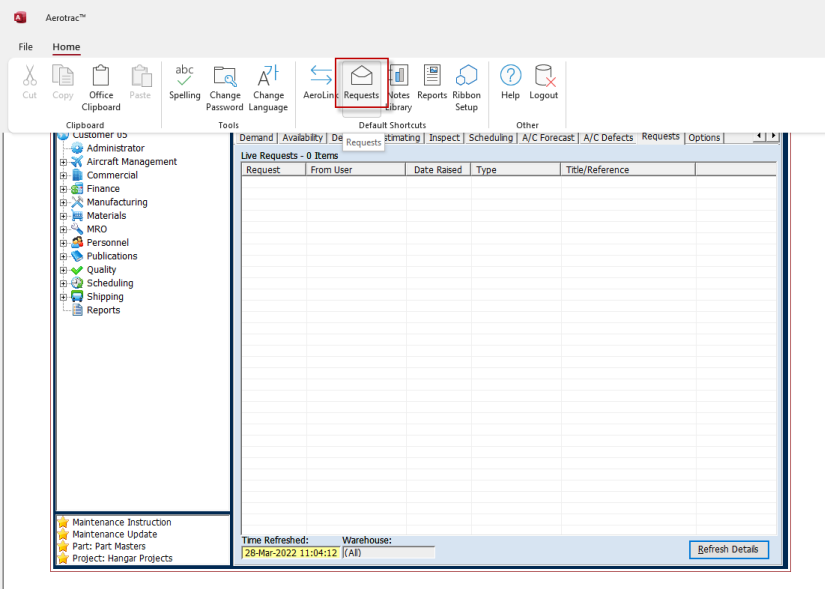
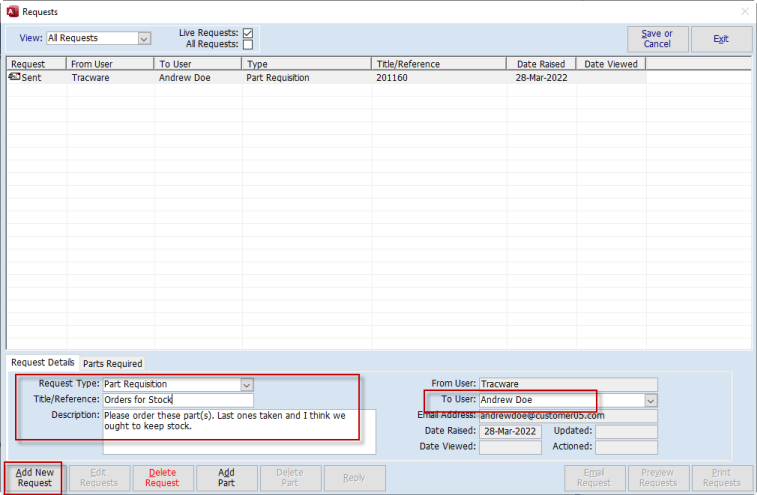
In the main Request screen that opens, add a new Request via the button located at the bottom left of the screen.
Select the “Request Type” (Parts Requisition is used in this example). The default "To User" will be assigned but this can be changed, as required.
Enter the “Title / Reference” and “Description” :-
Next, go to the “Parts Required” tab and add in the parts to be added to this request, via the “Add Part” button :-
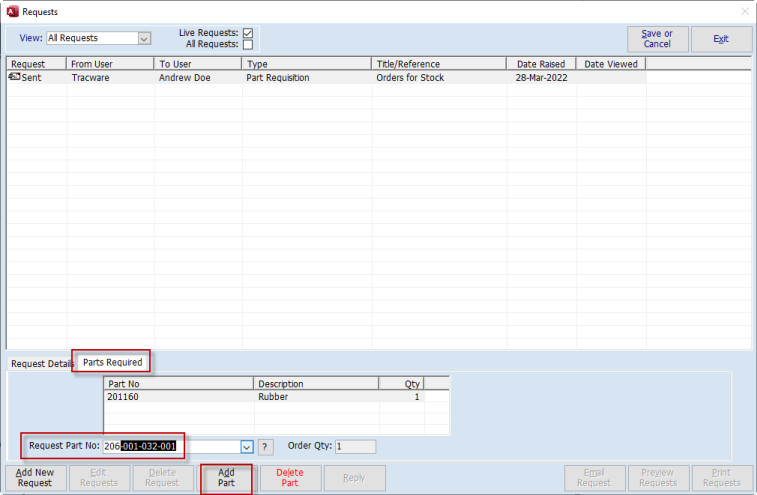
Enter the suggested “Order Qty”.
Repeat, as required, for additional parts.
Save the Request.
If required, the Request can be emailed via the “Email Request” button, but this is not mandatory as requests will show on the Status Board without being emailed.
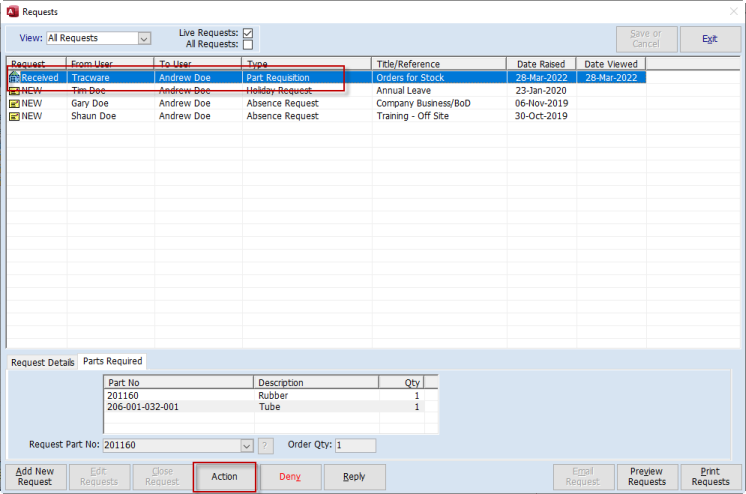
The Request will appear on the recipient’s Status Board “Requests” tab :-

Double clicking on a line will open the main Request screen so that the detail can be viewed.
In the main Requests screen, highlight the relevant Request. Click the “Action” button to open the PO screen and add the part(s) :-
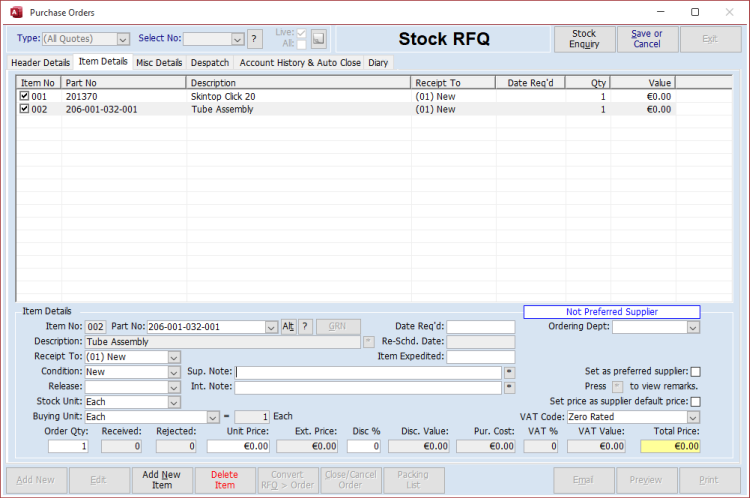
To add subsequent parts to the same PO, use the “Append to Existing Order” function :-

Process the PO in the normal way.
Back on the Requests screen, a reply will automatically be raised and the originator’s Request status is updated :-

Once actioned, the Request is removed from the Recipient’s Status Board.
Once actioned, Requests can be closed (or cancelled, if no longer required) via the main Requests screen, accessed via the Microsoft Access Ribbon.
By default, the screen shows “Live Requests”. Tick the “All Requests” tick box to see history of all Requests and Notes etc :-

Requests can also be denied from the main Requests screen by the Recipient. Replies can also be sent as Notes via the “Reply” button.
Aerotrac Version - 2.50.25.01c, April 2022
Not controlled once printed
END