



Print this Topic
Introduction
This process is used for the claiming of Parts, and possibly the labour involved in changing them, that are covered by warranty, even if they were not originally purchased by you.
This may be the case if you are replacing items on an aircraft, where the aircraft itself is subject to warranty and the part was original fit on the aircraft from new.
You would raise your claim with your supplier via their on-line web portal and then mirror the details in Aerotrac.
Process
Firstly, the defective component needs to be flagged on the Material Review as "Warranty Replacement" :-
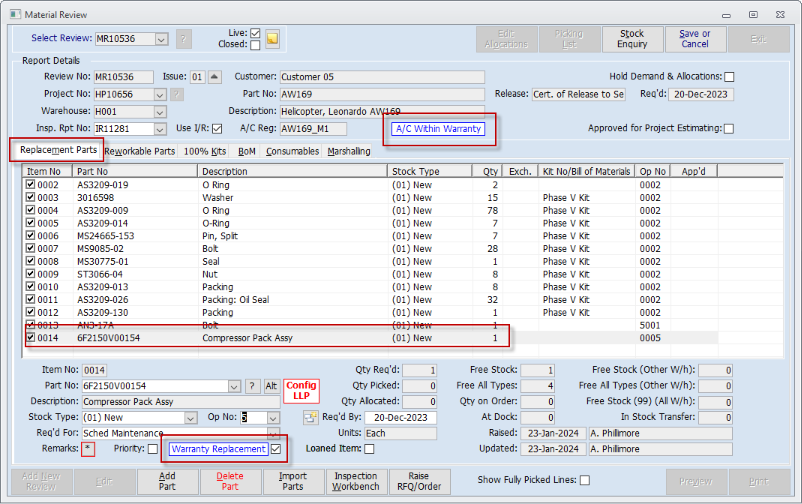


The component would need to be removed from the Hangar Project, and the replacement item fitted, in the usual manner.
The removed component would need to be transacted to quarantine stock via a "Component Removal or Robbery" Part Movement.
Note: Do not use a Stock Adjustment to transact the component to stock. Doing so will affect the warranty process.
Once the above has been achieved and you have raised your claim with the supplier via their web portal you can mirror the claim in Aerotrac.
In the Administrator module, navigate to the Warranty module and click the "Claim Details" link in the main menu.
Add a new "Original Equipment" warranty claim :-

Select the "Claim Type", the "Manufacturer", and "Warranty On" supplier details :-

Enter the "Third Party Claim No", if applicable, the "Third Party Claim Date" and the "Date of Occurrence".
Add any relevant notes to the "Claim Overview" field as necessary.
Tick the relevant box for "Resolution Req'd" :-

On the “Details” tab select the related Hangar "Project No".
Select the Claim "Part No" and, if the item is serialised, select the relevant serial number in the “S/N” field.
All known detail will be imported.
Enter any changes to the life details in the "Warranty Details" fields.
If the item was removed on a Project or Sales Order then make the necessary selections in the "Original Source" fields, although these details should automatically populate :-

Once complete, save your claim in the usual manner.
You can also update the status of your claim accordingly :-

If the supplier agrees to replace the defective item then raise a new Purchase Order (Stock) for the warranty replacement. See below.
If the supplier requires the item to be returned for Repair then raise a new Purchase Order (Stock Repair Order).
If the supplier requires the item to be returned and is going to issue you with a Credit then this credit will be processed against the original PO / PO Invoice.
Aircraft Maintained By Third Party
This functionality enables you to raise a claim on the OEM, if you have supplied parts to a third party who is maintaining an aircraft covered by Warranty.
In this case, on the "Details" tab tick the tick box against "A/C Maint. by 3rd party".
This button opens another dialog in which you enter the details of the aircraft, maintained by the 3rd party, that is subject to Warranty.
This then allows the selection of the Sales Order on which you sold the replacements part and displays the "A/C Details" button.
Note: In order that the OEM Claim form can be populated with the details of the discrepant part the Sales Order for the replacement item will need to have the RMA Credit raised and the discrepant part needs to be receipted via an RMA GRN and batch receipt in Aerotrac.
Claim Accepted
Setting the Claim Status as "Claim Accepted" will:
- Change the Status banner.
- Open up the "Warranty Action" fields on the right side of the screen.
- If the "Replace Item" tick box is selected, an additional tab is added for "Parts Due from Supplier". This will be updated when the replacement item is received.
- If the "Return Core" tick box is also selected, another additional tab is added for the return core details.
- The "Parts Owed to Supplier" tab then shows details of the core item. This is updated as the core is issue to the PO.
For the replacement item, raise a new Warranty PO and, if the core is to be returned, ensure that the box is ticked for “Core Unit to be Provided”
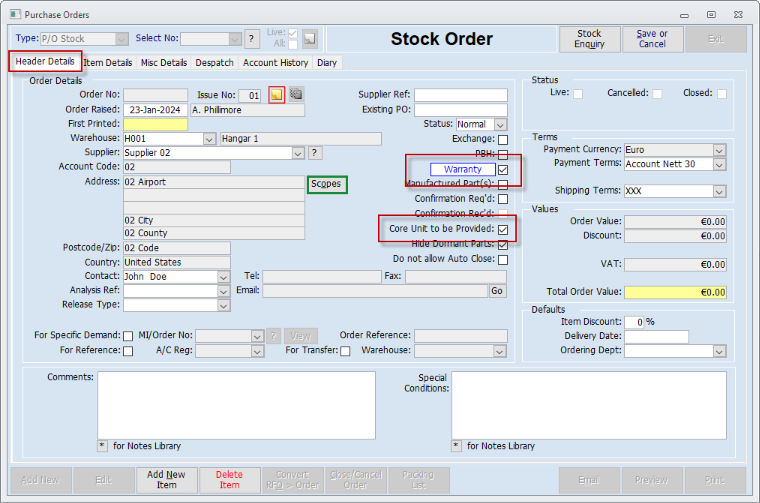
On the "Item Details" tab, add the part and select the "Warranty Claim No" against the part :-

You then issue the core from quarantine stock :-

You then raise a Packing list, against the PO, to ship the faulty part to the supplier.
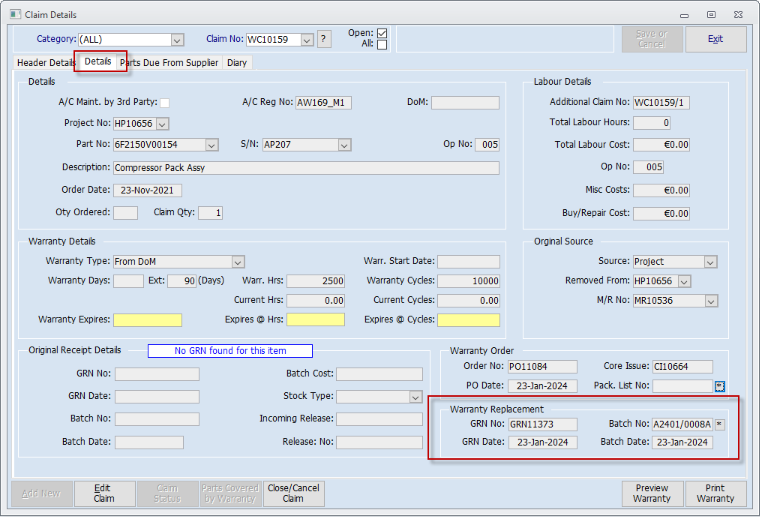
The warranty claim is then updated with all relevant information :-

Once the replacement item has been received, the warranty claim is again updated :-
Cost Movements
The Aerotrac Warranty module employs functionality that allows cost movements between stock items, used to replace items covered by warranty, and the replacement item supplied by the OEM.
For example, you need to replace am item, under warranty, but cannot wait for the OEM to supply the part. You have a Stock item with a batch cost. This item is issued to the warranty Project and the batch costs moves to WIP Material on the Project.
Following a successful claim the OEM supplies a replacement part at no cost to you. You would, in reality now have a situation, that is not ideal, where you have a Stock item at zero value and a cost in WIP that you cannot invoice.
However, the built in functionality moves the cost, of the original part issued, to the Stock Batch Cost of the replacement item.
Aerotrac Version v2.50.29.01, January 2024
Not controlled once printed
END