Print this Topic
Once the tool product has been registered, the physical tools can be added to Tool Stock. The purpose of the Tool Stock is to manage all physical tools, their location and their issue to and from various Works Orders and MRO Projects. Aerotrac records the history of each tool's use, its current status and location.
Tool Reg. No:- If the Client has its own means of Tooling Registration they can add the registration in the 'Tool Reg. No' field. Otherwise Aerotrac will give each tool a unique Tool Registration Number after saving the record.
| Steps | Navigate To | Screen | Instruction | Image |
|---|---|---|---|---|
| 1 | Quality | Tooling register |
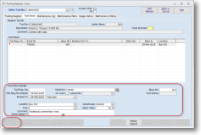
Click on the 'Tool Stock' tab and click on the 'Add to Tool Stock' button. Complete the form as required.. Serial No:- If the Tool has been setup as serialised, Aerotrac will force the User to enter the serial number. This should be the Manufacturer's serial number. Tool Reg No:- If the Client has its own means of Tooling Registration they can add the registration in the 'Tool Reg. No' field. Otherwise Aerotrac will give each tool a unique Tool Registration Number after saving the record. On Loan:- Check this box if the Tool is loaned to you. Loaned By:- In this dropdown all Suppliers and Customers will be listed for selection. This list is only available if the 'On Loan:' above is checked. This feature is only to be used for those tools loaned to your company. Location:- This field is populated from the default Location selected on the 'Tool Register Form' but can be changed for the specific tool in question. Warehouse:- If the Client has purchased the Aerotrac Multi-Warehousing option and has setup their Warehouses, a specific Warehouse can be selected from this dropdown. (Normally the location is subject to a Warehouse and/or Area so these will auto-populate from the selected Location). Area:- A specific Area can be selected from this dropdown. See above.. Issue No:- This is populated by the Issue Number set on the Tool Register, though it can be overwritten if the actual Tool Issue is different to that stated on the Register. A banner will appear in this case - 'Not Latest Issue' Tool Status:- This will display if the tool is in Stock or is booked out. If the tool is booked out additional information is displayed (see below) Comment:- Available for adding additional commentary. Click on the * button to select standard Notes from the Library |
|
| 2 | Quality | Tool Stock |
Save Note: Once the Tool has been booked into stock there will be an icon adjacent to the record. There is a 'Status Legend' button which will explain the colour coding and characters displayed. These are:- |
|
| 3 | Quality | Tool Stock | There is also a Linked Document icon. This can be used to attach scanned documents or images. (This is useful e.g. if a Calibration Certificate was supplied with the tool). |  |
| 4 | Quality | Tool Stock | Use the 'Preview Stock' or 'Print Stock' buttons to get a Status report of the tools in stock. | |
|
END | ||||