



Print this Topic
Quality Setup
Audit Ratings
Required only for Detailed Auditing, the Audit Ratings that apply to your Audit Results can be setup in the Administrator Module under Administrative Setup, Quality, Quality Setup.
Go to the "Audit Ratings" tab and add / edit the ratings as necessary :-

Those considered as non-conformances need to be flagged as such.
Audit Types
The type of audit is required to be setup for both Basic and Detailed Auditing.
The "Audit Types" can be added to the system via the Quality Setup screen found in the Administrator Module under Administrative Setup, Quality : -

Fault Codes
Required only for Detailed Auditing, there is a Fault Code selection that can be set when failing an audit.
The required Fault Codes can be added and edited in the Administrator Module, under Administrative Setup, Quality, Quality Setup :-

Employee Details
Auditors
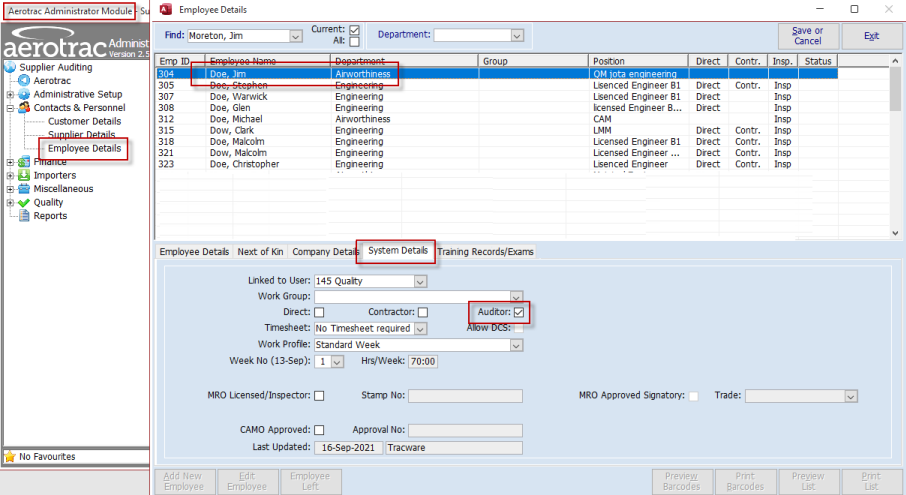
Required only for Detailed Auditing, those Employees who will be applied to the auditing process need to be flagged as such so that they can be selected on the Audit Results.
In the Administrator Module navigate to Contacts & Personnel, Employee Details and set the "Auditor" flag against the relevant Employee(s) on the lower "System Details" tab :-
Permissions
In addition to the standard Aerotrac permissions that apply to most screens, there are two screens that have additional "Misc" permissions that apply to Supplier Auditing. These are covered below.
Supplier Details
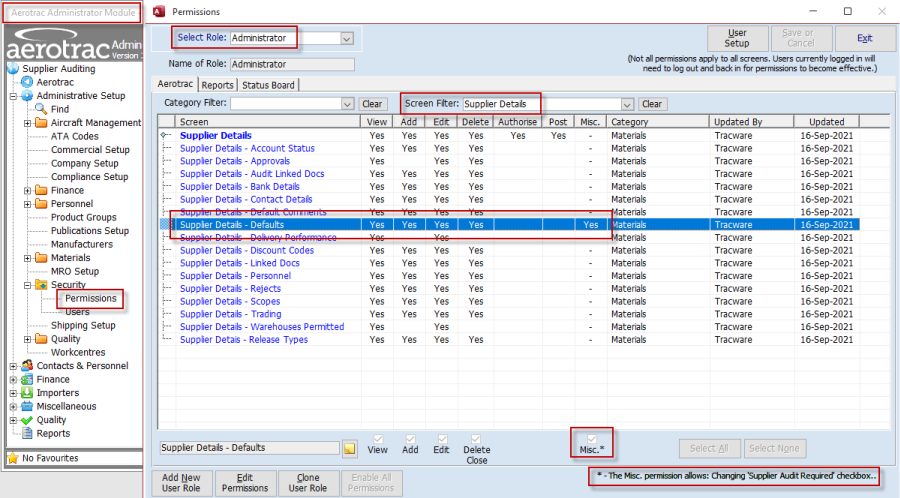
The "Misc" permission, as shown below for the "Supplier Details - Defaults " tab allows the changing of the "Supplier Audit Required" tickbox on the Supplier Details screen, "Defaults and Audit Details" tab :-

Otherwise the usual standard Aerotrac permissions apply.
Audit Details (Audit Template Screen)
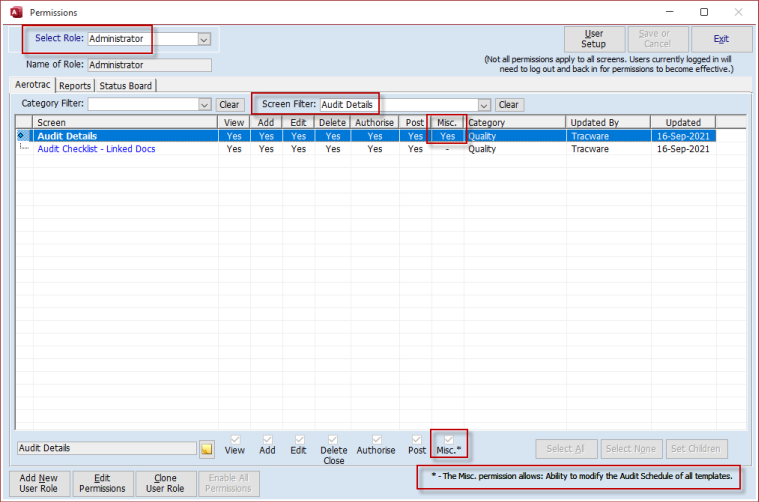
The permissions shown here under "Audit Details" actually control the "Audit Template" screen.
The "Misc" permission allows for the ability to modify the template "Audit Schedule" :-
Otherwise the usual standard Aerotrac permissions apply.
Audit Results
The usual standard Aerotrac permissions apply.
Audit Schedule (Audit Status Screen)
The permissions shown under "Audit Schedule" actually control the "Audit Status" screen.
The usual standard Aerotrac permissions apply.
Personnel Setup
Departments
Required only for Detailed Auditing of internal Departments, you need to flag those Departments that require auditing.
The setup for this can be found in the Administrator Module under Administrative Setup, Personnel, Personnel Setup, on the "Departments" tab :--

Those Departments set will then appear for selection on the Internal Audit templates.
Supplier Details
Personnel
Required only for Detailed Auditing, the Supplier being audited needs to have a "Quality Contact" set. In the Administrator Module navigate to Contacts & Personnel, Supplier Details, select the relevant Supplier and set the relevant contact on the "Personnel" tab :-
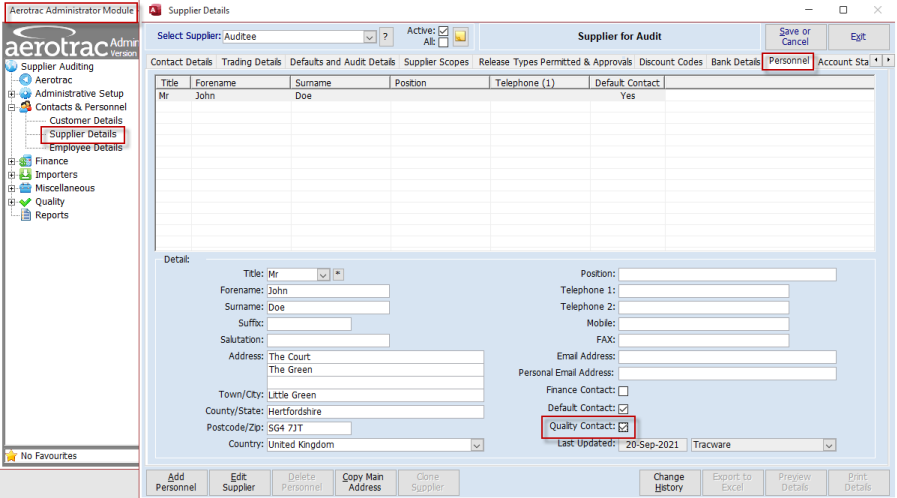
If the Supplier's Quality Contact does not exist then they will need to be added to the above screen and then flagged accordingly.
System Options
There are four main System Options that have an affect on how Detailed Auditing of your Suppliers works. These are found in the Administrator Module under Administrative Setup, Company Setup.
Go to the "System Options" tab. Here the search filter of "audit" has been used to narrow down the options :-

Supplier Detailed Auditing
This option will only appear if you have the full Quality Module activated. Setting this option on (the "Value" tick box ticked) activates the Detailed Auditing functionality described in this topic. With this option off, the auditing functionality is switched to Basic. The topic Basic Auditing refers.
New Supplier Require Audit
Required for both Basic and Detailed Auditing. This options specifies if when adding new Suppliers to the system, whether they should be subject to an immediate audit. This prevents new Suppliers being selected on Purchases Orders unless they have been audited.
Purchase Orders Require Audited Suppliers
Required for both Basic and Detailed Auditing. This option specifies whether Purchase Orders require the Suppliers to have been audited. Non audited Suppliers will not be available for selection on POs.
Note: This does not apply to Non-Stock or Service Orders.
Supplier Audit Warning Days
Required for both Basic and Detailed Auditing. This option displays a warning when raising a Purchase Order or RFQ if the Supplier's audit is due within the period set.
Note: Set the value to "0" to disable the warning altogether.
Aerotrac Version 2.50.24.01, September 2021
Not controlled once printed
END