



Print this Topic
Part Master
The Part Master is a crucial record in Aerotrac and the way it is setup will have a significant impact upon the processing behavior of Aerotrac so it is very important that the user defines the part correctly.
Adding/Creating a Part
 Navigate to Materials - Part Configuration - Part Masters and click on the 'Add New Part' button.
You will be presented with these choices and here are the explanations.

- Stock Part - This configures the Part so that it can be batched and traced via any movements in or out of stock. Also any part with Airworthiness requirements.
- Non Stock Item - This configures a Part that is not required to be processed via stock and does not need to be traced.
- Pre-Selected Kit - This is chosen when a kit is required to be built and registered as a Part in its own right. Click here for more detailed explanation of 'Pre-select Kits'
- Modification - This is a Part that is an Aircraft Modification. However it does not get processed via stock.
- Tooling - A Tool that is processed via the Tooling Register. See here for a more detailed explanation.
- GSE - Ground Support Equipment requiring maintenance via the GSE Register.
Note: In each case after confirming the selection, Aerotrac will configure the 'Part Master' input forms and tabs accordingly.
Here are the explanations of each input field or selection.
Part Master Fields - Explanation
Header Details Tab:-
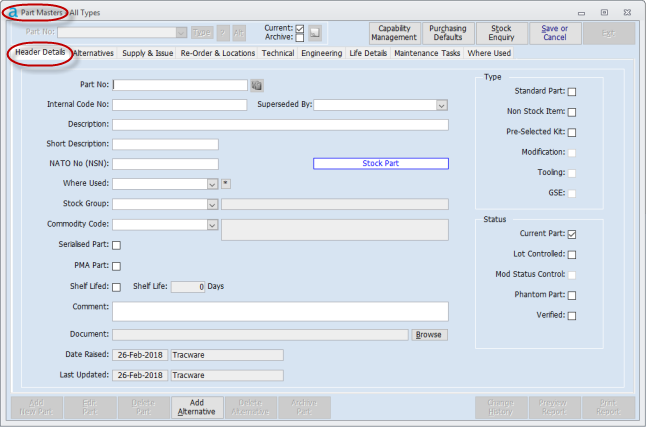
| Input Name | Input Type | Explanation |
|---|---|---|
| Part No: | Free Text | Product Number for the Part. A mandatory entry of a maximum of 32 characters and must be unique. After Input Aerotrac will convert to upper case. |
| Internal Code No: | Free Text | An optional input if a seperate code number is required for internal use. |
| Superceeded By: | Drop Down Selection | Selection of a Part number that superceeds this part number. Aerotrac will always promote the use of the 'Superceded by' Part Number. |
| Description: | Free Text | A Mandatory input field describing the Part (A good practice would be using the description given by the OEM's IPC if applicable). A maximum of 85 characters. |
| Short Description: | Free Text | Mandatory Input describing the Part in a maximum of 20 Characters. Its purpose is to display on forms and reports where space is limited for the complete description above. |
| Nato No (NSN): | Free Text | Entered if there is a known Nato code number for the part. |
| Where Used: | Selection | Optional selection if the User requires to know what areas the Part is used in. |
| Stock Group: | Selection | A mandatory selection to categorise what stocking group is applicable. |
| Commodity Code: | Selection | The commodity code to be selected for Intrastats. |
| Serialised: | Checkbox | A very important choice in Aerotrac. If 'Checked'; Aerotrac will force input or selection of a serial number every time the Part is processed. It is vital if the Part is to be maintained in anyway or has Airworthiness implications. |
| PMA Part: | Checkbox | 'Checked' if the part is made by a company with Parts Manufacturing Approval (PMA) from the OEM. |
| Shelf Lifed: | Checkbox | 'Checked' if the Part is monitored in stock by expiry date. |
| Shelf Life: | Numeric Input | Input a default number of days until expiry. |
| Comment: | Free Text | Used to add any appropriate commentary. |
| Document: | Browse Selection | Attach a specific document by browsing to it on the network's file path/folders. |
| Date Raised: | Auto Input | Date and User ID for when the Part Master was created. |
| Last Updated: | Auto Input | Date and User ID for when the Part Master was last modified. |
| Standard Part: | Checkbox |
'Checked' if the Part is classified as a 'Standard Part'. |
| Non Stock Item | Checkbox | Auto 'Checked' if the choice of 'Non Stock Item' was selected after clicking on the 'Add New Part'. |
| Pre-Selected Kit: | Checkbox | Auto 'Checked' if the choice of 'Pre-Selected Kit' was selected after clicking on the 'Add New Part'. |
| Modification: | Checkbox | Auto 'Checked' if the choice of 'Modification' was selected after clicking on the 'Add New Part'. |
| Tooling: | Checkbox | Auto 'Checked' if the choice of 'Tooling' was selected after clicking on the 'Add New Part'. |
| GSE: | Checkbox | Auto 'Checked' if the choice of 'GSE' was selected after clicking on the 'Add New Part'. |
| Current Part: | Checkbox | 'Unchecked' if the Part is set as 'Dormant'. |
| Lot Controlled: | Checkbox | If 'Checked' forces the input of a Manufacturers Lot No when batching. |
| Mod Status Control: | Checkbox | 'Checked' to activate Mod Status Control. Aerotrac forces input of Mod Status when transacting stock or adding a part to an Aircraft Configuration. |
| Phantom Part: | Checkbox | 'Checked' if the Part No is not a physical part. Can be used to collect 'Service' costs or creating Bill of Materials where the Parent isn't a physical assembly. An Aircraft Modification Part No (above) is also a 'Phantom Part'. |
| Verified | Checkbox | 'Checked' if the User wants to formalise the verification of the Part. Often used if a Part has been defined from an OEM's IPC. |
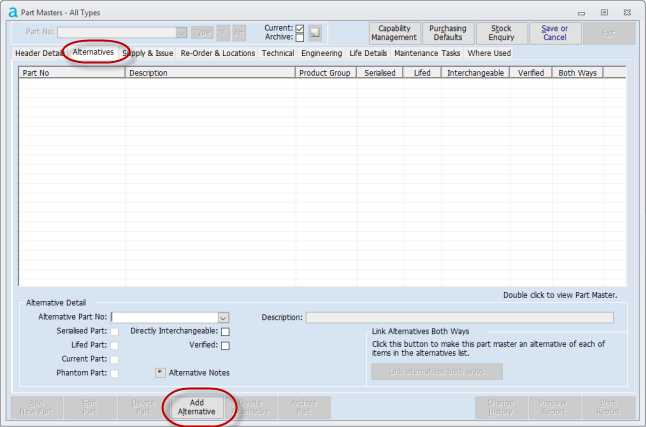
Alternatives Tab:-
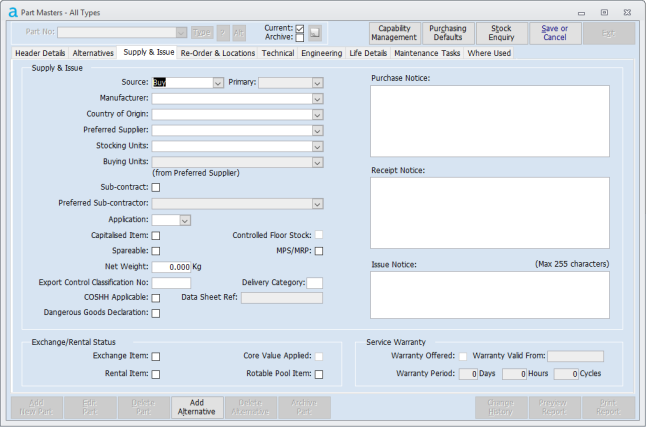
Supply & Issue Tab:-
| Input Name | Input Type | Explanation |
|---|---|---|
| Source: | Selection |
Three choices available, Buy, Make and Dual Source (which is both a Part that you make or, and Purchase. Defaults to 'Buy'. Note: If you have the 'Engineering' Module activated you must select 'Make or Dual Source' if you want to process a manufacturing 'Works Order'. |
| Primary | Selection | If 'Dual' is selected above this selection requires you to choose your primary source of 'Make' or 'Buy'. |
| Manufacturer: | Selection | The OEM that produces the part. |
| Country of Origin: | Selection | Select if Known |
| Preferred Supplier: | Selection | The preferred choice for the Vendor Supplying the Part. |
| Stocking Units: | Selection | A Mandatory input on the unit of measure used for stocking and issuing the part. See Unit Measures & Buying Unit conversions. |
| Buying Units: | Auto | Auto populated from the Preferred Suppliers buying units set in the Parts/Suppliers 'Purchasing Defaults'. |
| Sub-contract: | Checkbox | 'Checked' if the Part is sub-contracted 'out' for service or repair. |
| Preferred Sub-contractor: | Selection | Select Preferred Sub-contractor if known. |
| Application: | Selection | Indicates whether the Part is Exclusive to 'Military' or 'Civil' or Non-Exclusive - 'Both'. |
| Capitalised Item: | Checkbox | 'Checked' if the part is a Company asset. |
| Spareable: | Checkbox |
'Checked' if the Part is listed for sale on www.aeropartslocator.com |
| Net Weight: | Numeric | Add here the Net Weight if know. This is used when creating a packing for shipping purposes. |
| Export Control Classification No: | Free Text | Add the Code if applicable. |
| COSHH Applicable | Checkbox | 'Checked' if the Part is subject to COSHH |
| Data Sheet Ref: | Free Text | Add the Data sheet reference if the part is subject to COSHH. |
| Delivery Category: | Free Text | Used for on filtering Report COM0039 'Shipped Sales Order Parts'. |
| Controlled Floor Stock: | Disabled | Not Used |
| MPS/MRP: | Checkbox | Used if the MRP module is activated in Aerotrac. Parts that are selectable in the MRP process must have this box 'checked'. |
| Dangerous Goods Declaration: | Checkbox | If 'checked' Dangerous Goods Banners will be printed on GRN's and PO's |
| Exchange Item: | Checkbox | 'Checked' if the Part could be subject to exchanges. Where cores have to be provided when selling or buying. |
| Rental Item: | Checkbox | 'Checked' if the Part could be subject to being Rented out to Customers. Will appear for selection on Rental Workshop Projects. |
| Core Value Applied: | Auto | If 'Checked' this Item has a Core value applied to it when in stock. |
| Rotable Pool Item: | Checkbox | Adds Banners for Capitalised Items on PO's, Sales Orders, Batch Generation. Setup to be used with a future Aerotrac 'Rotable' module. |
| Purchase Notice: | Free Text | If populated this notice will appear when raising a PO for importing into the PO's comments section. |
| Receipt Notice: | Free Text | If populated this notice will appear as a message when batching the part to stock |
| Issue Notice: | Free Text | If populated this notice will appear as a message when adding the Part to a Material Review or a Sales Order. |
| Warranty Offered: | Checkbox | 'Checked' if your Company offers 'Service' Warranty |
| Warranty Valid From: | Date | Enter the date you started offering 'Service Warranty' on this part. |
| Warranty Period: | Numeric | Enter the Warranty Period that is offered. |
| Input Name | Input Type | Explanation |
|---|---|---|
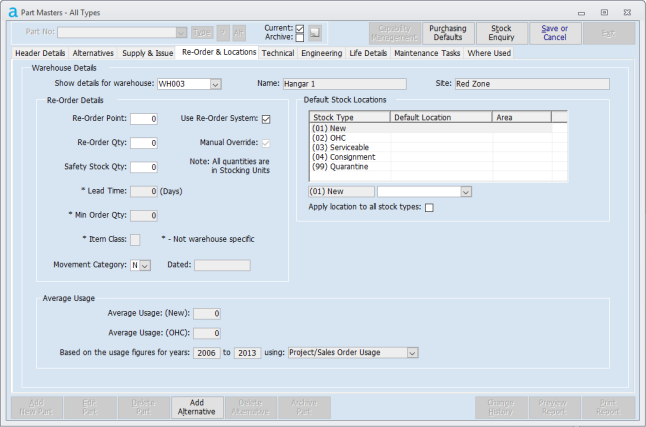
| Show details for warehouse: | Selection | Only applicable if 'Multi-Warehousing' module is activated. Re-Order Details and Default Stock Locations are Warehouse specific. |
| Re-Order Point: | Numeric | Set the Quantity to the minimum stock quantity you want the Re-ordering system to start reporting. |
| Re-Order Qty: | Numeric | This number will be the recommended order quantity when stock is below the Re=Order Point above. |
| Safety Stock | Numeric | Set the Quantity to the minimum stock quantity you want the 'Safety Stock' system to start reporting. |
| Lead Time: | Auto | This figure will be populated from the Preferred Suppliers 'Lead Time' set in 'Purchasing Defaults'. |
| Min Order Qty: | Auto | This figure will be populated from the Preferred Suppliers 'Min Order Qty' set in 'Purchasing Defaults'. |
| Item Class: | Auto | This is selected based upon setting the 'Re-Order Drivers' in Administrator - Administrative Setup - Materials - Materials Setup - Re-Order Drivers |
| Movement Category | Auto + Selection |
This category is defined by the codes setup in Administrator - Administrative Setup - Financial Setup - Accounting Options & Movement Categories. 'Held' and 'Redundant' categories can be manually selected as long as the Part is considered as 'Slow Moving'. |
| Average Usage (New): | Auto | Calculated by Aerotrac. |
| Average Usage (OHC): | Auto | Calculated by Aerotrac. |
| Based on the usage figures for years: | Auto | Determined by settings in Administrator - Administrative Setup - Materials - Materials Setup - Re-Order Drivers. |
| Default Stock Location | Selection | Click on each stock type and select the default location if desired. |
| Apply location to all stock types: | Checkbox | 'Checked' if applicable. |
Technical:-
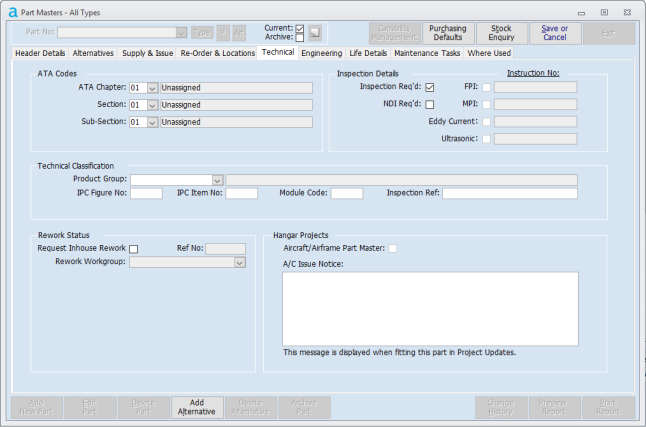
| Input Name | Input Type | Explanation |
|---|---|---|
| ATA Chapter:, Section: & Sub-Section: | Selection | Select if Appropriate. Usually applicable to an OEM Product supported by a Technical Manual. |
| Product Group | Selection |
Product Group – Refers to Technical Compliance and from an aircraft management perspective, relates to Maintenance Tasks, A/C Maintenance Groups and Publications from the OEM for a particular aircraft/engine/component. A Mandatory Selection, Select the most appropriate grouping depending upon the MRO Services that will be applied to it. If the Part is not Serviced, Maintained or Overhauled then set to 'Z999' Unclassified. |
| IPC Figure No:, IPC Item No:, Module Code: | Free Text | The IPC Reference usually added to OEM specific parts, the Module Code is used as a filter on Reports...MATS0043 'Part Master Details',PROD008 'Life Limited Components Fitted'. |
| Inspection Ref: | Free Text | This creates a Document Reference on the Routing Tab for when importing into a Workshop Project a generic Inspection Route. |
| Inspection Req'd: | Checkbox | Normally 'Checked' by default and will import into a Workshop Project if it is child part of the Parent Project part. Usually for those parts that are removed and replaced as part of the service. Aerotrac will create an Inspection sheet in the Project Work Pack with this parts details. |
| NDI Req'd: | Checkbox | 'Checked' if the part after removal from an assembly requires NDI inspection. Aerotrac will create an NDI inspection sheet in the Project Work Pack with this parts details. |
| FPI: | Checkbox |
'Checked' if you are using an FPI Specific Specification and input the Specification Reference No. Note: Becomes available when the above NDI Req'd is 'checked'. |
| MPI: | Checkbox |
'Checked' if you are using an MPI Specific Specification and input the Specification Reference No. Note: Becomes available when the above NDI Req'd is 'checked'. |
| Eddy Current: | Checkbox |
'Checked' if you are using an Eddy Current Specific Specification and input the Specification Reference No. Note: Becomes available when the above NDI Req'd is 'checked'. |
| Ultrasonic | Checkbox |
'Checked' if you are using an Ultrasonic Specific Specification and input the Specification Reference No. Note: Becomes available when the above NDI Req'd is 'checked'. |
| Request Inhouse Rework: | Checkbox |
'Request Inhouse Rework:' is the description used when the Quality Management Module is activated in Aerotrac and the Capability Management option is switched on. After completing the Part Master and saving the user must Approve the Part in 'Capability Management' Otherwise the description will be 'In-House Rework:' 'Check' this box if you want to carryout servicing, overhauling or maintenance on this part. |
| Ref No: | Auto | The Part Capability Approval No after the Capability is approved. |
| Rework Group: | Selection | Select the Appropriate 'Rework Group'. |
| Aircraft/Airframe Part Master: | Checkbox | Only 'Check' this if the Part defined is an Aircraft/Airframe. If 'checked' the text box below 'A/C Issue Notice' will be displayed on the 'Certificate of Release to Service form. |
| A/C Issue Notice: | Free Text | The message created will appear when confirming the fitment of the part in Aerotrac's 'Project Updates'. |
Engineering:-
Note: This Screen is for inputting details if the Parts 'Source' is set as 'Make'
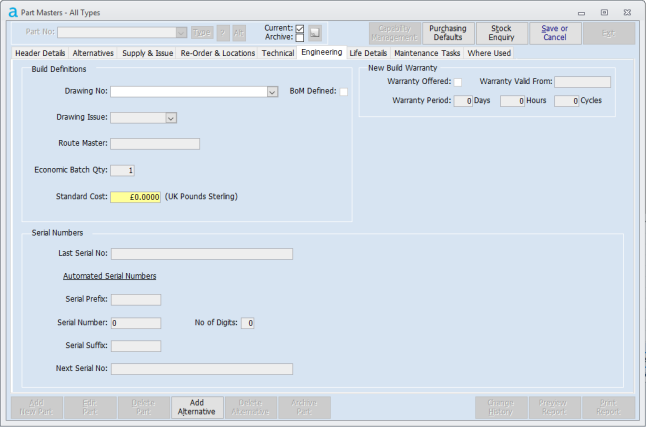
| Input Name | Input Type | Explanation |
|---|---|---|
| Drawing No:, Drawing Issue: | Selection or Auto | Select the appropriate drawing number and issue number. If the Part has a BoM defined the Drawing No and Issue will be auto-populated from the BoM settings. |
| Bom Defined: | Auto | 'Checked' if a BoM has been defined. |
| Route Master: | Auto | If a Route Master has been created for this Part then it will display here. |
| Economic Batch Qty: | Auto | Defaults to quantity 1 but is set on the parts Route Master: |
| Last Serial No: | Auto | Only displays if the part is set as serialised. |
| Serial Prefix: | Free Text | Only available if the parts is set as serialised. Input the serial no prefix code if appropriate |
| Serial No: & No of Digits: | Numeric | Set the starting number here and the number of digits. Only available if the parts is set as serialised. |
| Serial No Suffix: | Free Text | Only available if the parts is set as serialised. Input the serial no suffix code if appropriate |
| Next Serial No: | Auto | Populated to display next serial no in series. |
| New Build Warranty: | Checkbox | 'Checked' if the Manufactured Part is subject to Warranty. |
| Warranty valid from: | Date | Date from when the warranty is valid from. |
| Warranty Period | Numeric | Warranty period in Days, Hours or Cycles. |
Life Details:-
Note: This Screen is only available for input if the Part is set as 'Serialised' except for AEL parts.

| Input Name | Input Type | Explanation |
|---|---|---|
| Lifed: | Checkbox | 'Checked' if the part is 'Lifed' and requires tracking in Aerotrac. |
| Calendar Lifed: | Checkbox | 'Checked' if the part is tracked in days, months or years. |
| Show on Maint. Status: | Checkbox | Defaults as 'Checked'. Displays part on Aerotrac's Aircraft Maintenance Status. |
| Chaotic: | Checkbox | If 'Checked' life details are updated independently of Airframe in Aerotrac's Aircraft Utilization process. |
| Role Equipment: | Checkbox | 'Checked' if part is 'Role Equipment' , Aircraft Hoists, Stretchers, Surveillance Pods being some examples. |
| AEL: | Checkbox | Only becomes active if Lifed: is not 'checked'. For parts to be listed on the Aircraft Configuration but do not require tracking from a 'Life Limits' point of view. |
| Life Type | Selection | Set here the Life Type; Landings/Cycles/Starts (Default), N1, N2, N3 Cycles, Calculated or Readout/Download. |
| Embodied in Product Group: | Auto + Selection | Defaults to 'Default'. Is selectable if additional different life details are added for this part. The different life details will be displayed in the Embodied panel above. |
| Date Raised: & Last Updated: | Auto | Dates displayed and the Aerotrac User that added the 'Life Details'. |
| Project Action: | Free Text | This action appears on the 'Components' Tab in 'Hangar Projects - Technical' screen as an Action when removing the part. |
| Warning @: | Checkbox & Various | If checked and limits set this Part will be colour coded 'yellow' on the aircraft's 'Maintenance Status - Components Tab' when within the warning limit. |
| Scrap @ Hours; | Numeric | Defaults to N/A. 'Uncheck' adjacent 'N/A' to set and if necessary the Tol.± |
| Time Before Overhaul/Inspection: | Numeric | Defaults to N/A. 'Uncheck' adjacent 'N/A' to set and if necessary the Tol.± |
| Scrap @ Cycles | Numeric | Defaults to N/A. 'Uncheck' adjacent 'N/A' to set and if necessary the Tol.± |
| Cycles Before Overhaul/Inspection | Numeric | Defaults to N/A. 'Uncheck' adjacent 'N/A' to set and if necessary the Tol.± |
| On Condition: | Checkbox: | 'Checked' if no specific life limits are set but part requires tracking via the aircraft’s Configuration Status |
| Duplicate Inspection: | Checkbox | 'Checked' if when replacing the part a 'Duplicate Inspection' is required. |
| Utilization Warning: | Checkbox | Creates a warning Banner for the part when processing 'Aircraft Utilizations'. |
| for remarks | Button | To add any additional supporting commentary for the part's 'Life' settings. |
| Scrap @: | Numeric | Calendar Setting. 'Uncheck' adjacent 'N/A' to set and if necessary the Tol.± |
| Overhaul @: | Numeric | Calendar Setting. 'Uncheck' adjacent 'N/A' to set and if necessary the Tol.± |
| Inspection @: | Numeric | Calendar Setting. 'Uncheck' adjacent 'N/A' to set and if necessary the Tol.± |
| Off-Wing Inspection @: | Numeric | Calendar Setting. 'Uncheck' adjacent 'N/A' to set and if necessary the Tol.± |
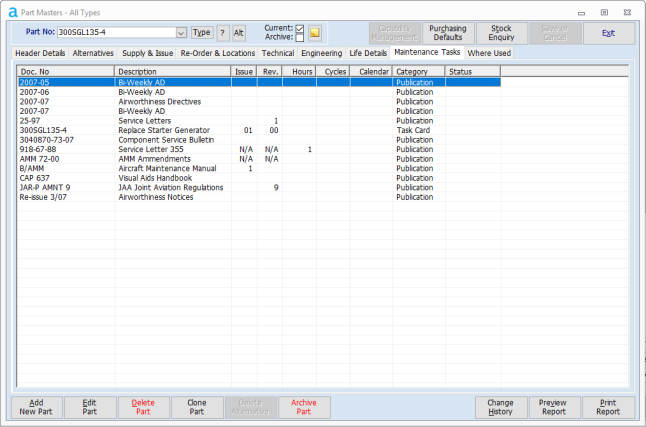
Maintenance Tasks:-
This Screen is not for user input but for displaying where the Part is referred to on various Maintenance Tasks; Task Cards and Publications.
Note: Double clicking on any of the entries will take you to the 'Publication' or 'Task Card' listed.
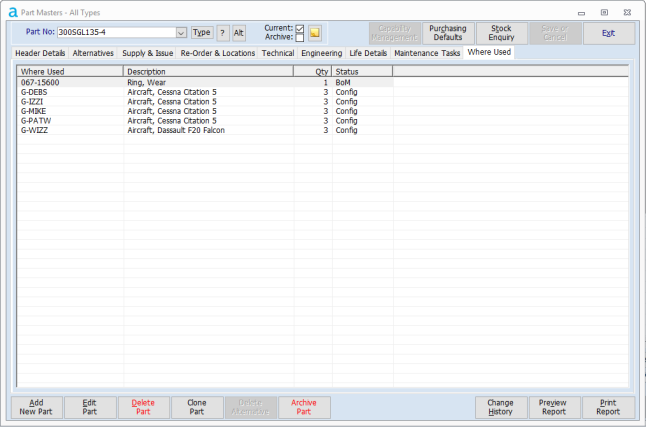
Where Used:-
This Screen is not for user input but for displaying where the Part is referred to in Aircraft Configurations and Bills of Materials.
Note: This Screen is for inputting details if the Parts 'Source' is set as 'Make'
Non Stock Item
Non Stock Parts are used in Aerotrac so that they can be purchased or shipped. Parts for office equipment, stationery, cleaning products, tea, coffee etc. The screen and tabs configure themselves accordingly.
Pre-Selected Kit
A Part Master created for kitting and Aerotrac configures the Screen and tabs accordingly. Click here to Pre-Selected kits.
Modifications
These are phantom parts but are necessary to create 'Modification' Work Orders so that the Mod. can be built or assembled ready for installation on an airframe. Aerotrac configures the screens and tabs accordingly.
Tooling/GSE
There is a separate topic that covers the tooling creation and process. The GSE items follow exactly the same process as tools. Click here to Tool Part Master Creation.
Part Master Buttons
Note: Certain buttons become active depending upon selections. Un-active buttons are 'greyed' out to show that they are not active.
| Button Name | Action |
|---|---|
| Add New Part | Press to add a new part. |
| Edit Part | Press to open the screen and tabs to modify. |
| Delete Part |
Press to delete the part number. Note: Aerotrac will refuse deletion of the part if it has been transacted in anyway. Only then can you set the part as dormant. |
| Clone Part | First select a similar part in the Part No: Selection drop down. Then Press the 'Clone Part' button. Aerotrac will copy all the details of the part and add the word "CLONE" to the end of the part number. You must change that part number to the new part number and then continue to change or modify any other details. |
| Add Alternative | Press to add an alternative part. Click here for more.. |
| Delete Alternative | Press to delete the alternative record. |
| Archive Part | This button is used to archive the part number "Put it away for later use". Archive parts can be used on Sales Quotes and if the quote is accepted by the Customer they can be recovered and changed to 'Current'. Useful so as not to 'clog up' the system with thousands of parts that do not get transacted. |
| Change History | If the option in Administrator - Administrative Setup - Company Setup - System Options - Quality 'Always Record Change History' is set on then any changes made to a part master must be recorded. This button will show the history of those changes. |
| Preview Report | Press to preview the Part Master details report MATS0043. |
| Print Report | Press to print the Part Master details report MATS0043. |
| Capability Management | This button only appears if the Quality Module is activated and the Administrator - Administrative Setup - Company Setup - System Options - Quality 'Capability Management' is set on. Click here for more. |
| Purchasing Defaults | This button directs the user directly to 'Purchasing Defaults' for this part. |
| Stock Enquiry | This button directs the user directly to 'Stock Details' to investigate stocking levels for this part. |
| Save or Cancel | Press to Save changes or Cancel Changes. |
| Exit | Press to exit completely from the 'Part Master' screen and return to Aerotrac's primary navigation screen. |
END