



Print this Topic
Utilization - Overview and Setup
Overview
The Aerotrac "Utilization" screen is designed to mirror the actual flight logs / tech logs / sector record pages so that the airframe hours and landings, and engine hours and cycles etc flown can be reflected in the system, for those aircraft that are set as "Aircraft Managed / Part M" in the Fleet Details setup. Refer to Adding Fleet Details for further information.
Entries added via the Utilization screen will update the aircraft’s life details and the components setup on the Configuration Status (once the records have been posted). It is important that all relevant flight logs are added, in the correct sequence, to ensure the accuracy of the scheduling and forecasting functions with in Aerotrac.
From the main menu, navigate to Aircraft Management and click on the "Utilization" link :-

On the screen that opens you will need to choose the relevant aircraft registration in the "Select Aircraft" drop-down combo located at the top left of the screen.
The screen will then populate with relevant data.
The subsequent topics explain the data displayed, how to use the screen and the adding of new utilization records but first, some explanation of the required setup is necessary.
Setup - Fleet Details
Aircraft that are set as "Aircraft Managed / Part M" in the Fleet Details setup will display the lower "Management" tab that contains various setting options.
You can refer to Adding Fleet Details for further information but the settings relevant to the Utilization screen are covered below.
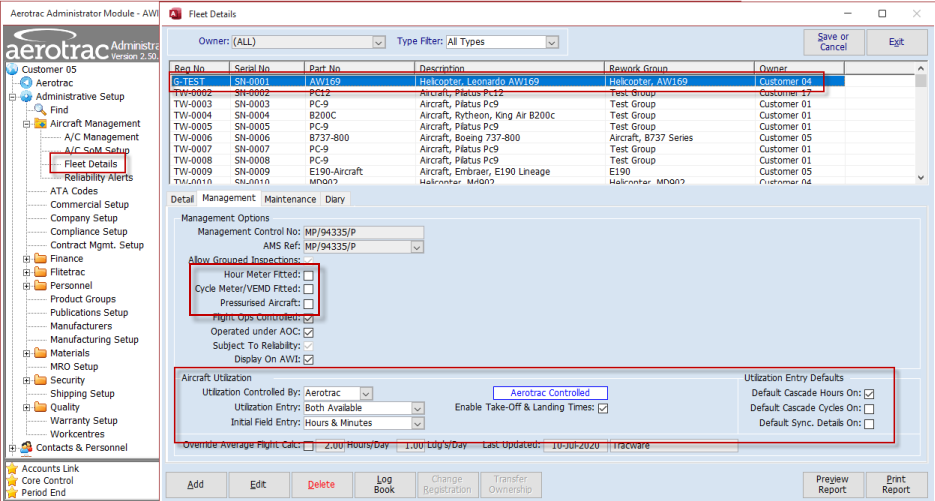
Hour Meter Fitted: This checkbox adds the "Hour Meter" field to the Aircraft Configuration Status (Config) Screen, Aircraft Status and Aircraft Utilization screens. The field gets updated with the value that is equal to the Aircraft TSN field.
Cycle Meter/VEMD Fitted: This checkbox determines which Cycle fields are open for edit on the Engine tabs on the Utilization screen. On the Utilization screen, you either enter the cycle value for the flight (This option in Fleet Details unticked) or you enter the new total cycle value (This option in Fleet Details ticked).
Pressurised Aircraft: This checkbox adds the “Pressure Cycles” field to the Aircraft Configuration Status (Config) Screen, Aircraft Status and Aircraft Utilization screens for entry of pressure cycles recorded against the airframe. The maximum number of Pressure Cycles can be set on the Aircraft Configuration Status.
Aircraft Utilization:
Utilization Controlled By: This determines whether the aircraft is Utilization controlled and if so, the method for recording Utilization whether directly in Aerotrac, via the Aerosector interface, the e-Tech Log or AWI web interface :-
Note: This topic is designed to cover only utilization entries via Aerotrac. Utilization entries via the other options mentioned above are outside the scope of this topic.
Utilization Entry: This determines which fields are open for entry on the Aircraft Utilization screen. Options are as per the screen print below :-
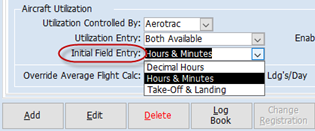
Initial Field Entry: This allows the User to define the initial data entry field on the Aircraft Utilization screen. Options are as per the screen print below :-
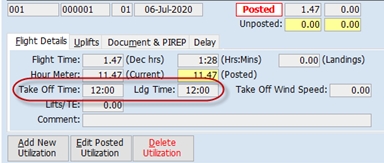
Enable Take-Of & Landing Times: If ticked, will display the "Take Off Time" and "Ldg Time" fields on the Utilization screen as shown here :-
Allow Lifts to be recorded: Tick this tick-box to manually put the "Lifts" field on the Aircraft Utilization screen for this aircraft.
Having the “Lifts” field on the Utilization screen only really applies when a life formula / penalty factor has a calculation that includes lifts.
If you have a life formula / penalty factor set up that includes lifts then the Utilization screen will automatically include the “Lifts” field (and the option to include this via this “Allow Lifts to be recorded” field in Fleet Details will be hidden).
Entering a value in the “Lifts” field, on the Utilization screen, will allow the system to use the lifts value in the relevant calculation. Refer to topic Aircraft Component and Engine Cycles and Life Formulas.
If you have the “Lifts” field activated but no life formula calculation that includes the lifts value then the entry field, on the Utilization screen, allows you to records lifts, for reference only, but this has no other effect in Aerotrac.


Utilization Entry Defaults:
Default Cascade Hours On: This determines whether, on the Aircraft Utilization screen, hours entered against the Airframe are carried across to subsequent tabs for Engines etc. (Recommended).
Default Cascade Cycles On: This determines whether, on the Aircraft Utilization screen, landings entered against the Airframe are carried across as "Cycles/Starts" to subsequent tabs for Engines. (This is not recommended for normal use, as airframe landings and Engine Cycles / Starts are not relative).
Default Sync Details On: This determines if, on the Aircraft Utilization screen, data is synchronised across all tabs. (This is not recommended for normal use as, for example, if the No. 2 Engine Cycles were edited, the same value will overwrite existing values for No.1 Engine and Airframe Landings).
Setup - Life Formulas
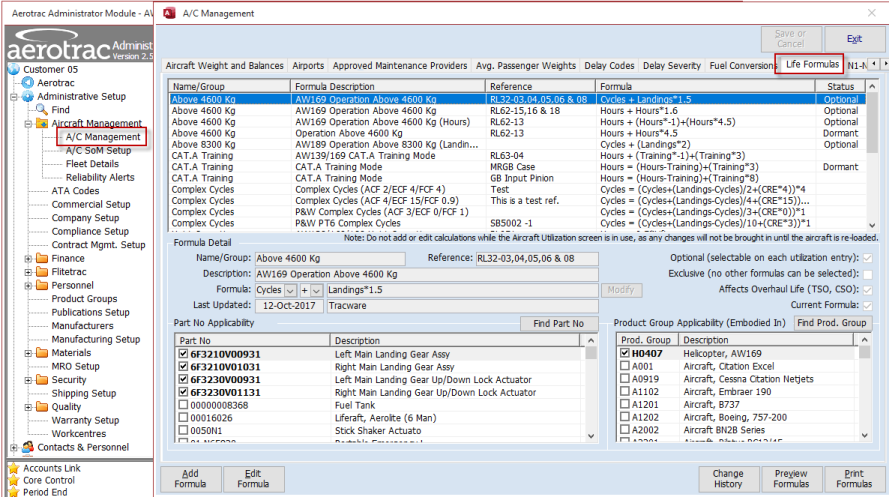
Certain Aircraft types may have penalties applied to the Airframe, Engines and Components based on certain factors and these can be applied in Aerotrac when adding new utilization entries. The relevant formulas need to be setup first for this to work.
Refer to the topic Aircraft Component and Engine Cycles and Life Formulas for further details on this.
Setup - Part Master Cycle "Life Type"
Certain component parts of the airframe and engines may require the logging of different life criteria and this is reflected in Aerotrac via the Part Master for the component via the "Life Type" found on the "Life Details" tab of the Part Master screen :-

Particularly relevant, with regard to the Utilization screen, is the "Readout/Download" option. If you have Engine component Part Masters with this option set then a separate tab will appear on the Engine Utilization tab that allows for the downloaded cycles figure to be entered against each component.
Refer to topic Engine Utilization for further details on this.
Refer also to the topic Aircraft Component and Engine Cycles and Life Formulas for further details on the cycle life types.
Setup - System Options
In addition to the setup options already mentioned above, there are three main "System Options" that can affect the Utilization screen.
These are found in the Administrator Module under Administrative Setup, Company Setup on the main System Options tab and sub tab "Aircraft Management".
The "Utilization Max Age" option sets the default for the "Max Age" drop-down combo when the Utilization screen is opened and so determines how far back in time data is displayed for.
The various options for the "Max Age" are as displayed below :-

The three Utilization Uplift Label options allow for the setting of your own uplift types in addition to those that are already hard coded into the system for Fuel, Hydraulic Fluid and De-icing Fluid (Aircraft) and Oil (Engines) :-
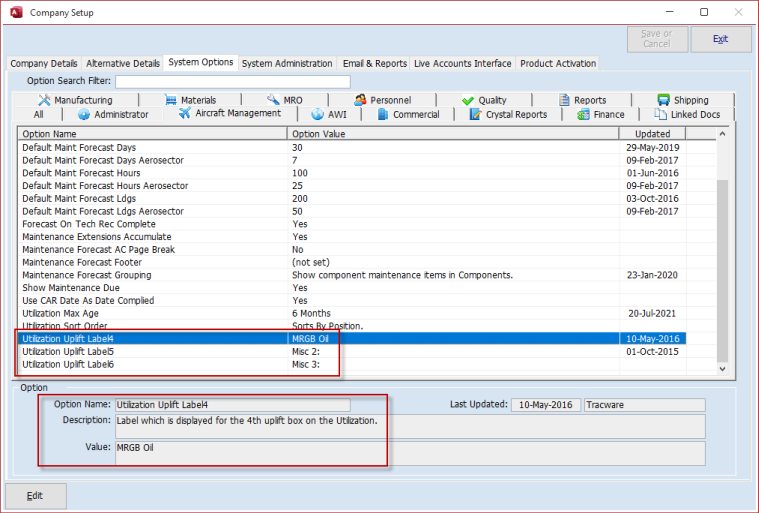
For further details on the Uplifts themselves, refer to the Aircraft Utilization and Engine Utilization topics.
The "Utilization Sort Order" option determines how the tabs for the Engines are arranged on the Utilization screen. This can either be by Serial Number or by Position, so that the Left / Port engine appears first :-

Setup - Delay Codes / Delay Severity
The Delay Codes and Severity options are required for the Reliability functionality. If you have purchased the Reliability Module then via the associated activation key the Utilization screen will display fields for adding in the delay data via the utilization entries against the aircraft.
In order that this delay data can be entered via the utilization entries against the aircraft you will need to ensure that the relevant Delay Codes are setup in the system first.
This setup is achieved here, in the Administrator Module under Administrative Setup, Aircraft Management, A/C Management :-

Similar setup is also required here for the Delay Severity times :-

Setup - AWI / Aerosector
Note: The following only applies if AWI (Aerotrac Web Interface) or Aerosector is enabled on your Aerotrac system.
Fuel Suppliers can be set against Fuel Uplifts providing that the Supplier has a scope set that has the "Fuel Supplier" tick box ticked.
In the Administrator Module, navigate to Administrative Setup, Quality, Quality Setup and go to the "Supplier Scopes" tab :-

Add a scope type for fuel suppliers and tick the "Fuel Supplier" tick box.
Also in the Administrator Module, navigate to Contacts & Personnel, Supplier Details. Select the relevant Supplier and add in the "Scope Code" as set above :-
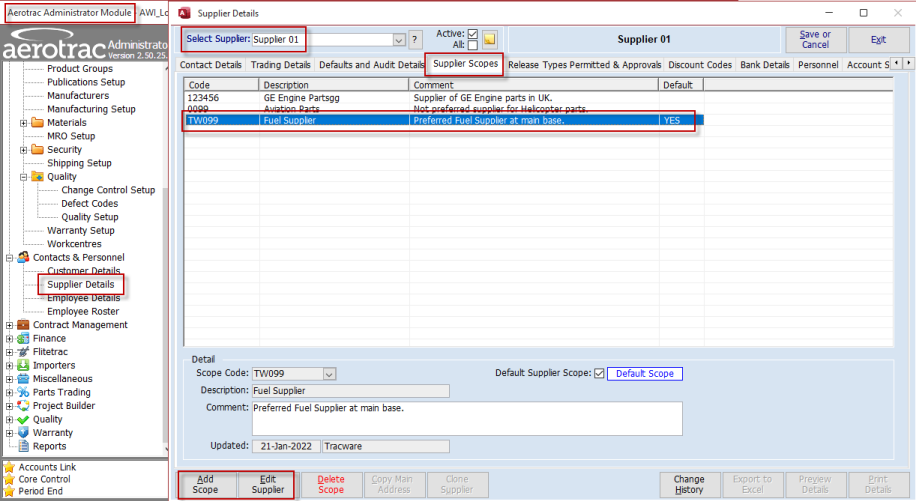
Refer to the "Uplifts" section of the topic Aircraft Utilization.
Setup - Log Books
Finally, before you can add Utilizations against an aircraft in Aerotrac, the physical log books need to be defined in the system. Refer to the topic Aircraft Logbooks for further details on this.
Aerotrac Version - 2.50.25.01, January 2022
Not controlled once printed
END